You open a pull request and the diff is fine. Then the reviewer expands the commit list
and finds seven entries: three real changes, two called wip, one called fix typo,
and one called actually fix typo. Nothing is wrong with the code. The history is just
noise, and noise makes review slower because the reviewer has to figure out which
commits matter.
Interactive rebase is the tool for that. It rewrites the sequence of commits on your branch without touching the final state of the files. Same code, better story. The problem gets worse rather than better once an agent is writing half the commits, since vibe coding with Git tends to produce even more checkpoint-style commits than a human working alone.
Most developers know it exists. Far fewer use it regularly, and the reason usually has nothing to do with Git itself. It is the todo file: a plain text buffer that opens in whatever editor Git is configured to use, where you edit keywords in front of commit hashes and hope you got it right before saving.
#What interactive rebase actually does
When you run git rebase -i <base>, Git does three things. It collects every commit
between <base> and HEAD, writes them into a temporary file as a list of
instructions, and then replays them one by one according to whatever you left in that
file.
That replay is the important part. Every commit gets a new hash, because a commit hash is derived from its content and its parent. Change the parent, change the hash. This is why rebasing rewrites history rather than editing it in place, and why the golden rule about shared branches exists.
# Rebase every commit on your branch that is not on main.
git rebase -i main

# Or count back a fixed number of commits from HEAD.
git rebase -i HEAD~5
Prefer the first form. git rebase -i main selects exactly your unmerged work.
HEAD~5 requires you to count, and miscounting by one is how people accidentally
rewrite a commit that was already pushed and reviewed.
#What is actually happening to the objects
It helps to be precise about this, because the vague version ("rebase rewrites history") is what makes people nervous.
A Git commit is an immutable object containing a tree hash, one or more parent hashes, the author and committer metadata, and the message. Its SHA is a hash of all of that. Nothing in Git can modify a commit, because changing any field produces a different hash and therefore a different object.
So a rebase does not edit anything. It creates new commits. For each commit in the range, Git computes the diff against its parent, applies that diff on top of the new base, and writes a new commit object with a new parent and, usually, a new tree. Then it moves your branch pointer to the last of those new commits.
The old commits are still in .git/objects. Nothing has been deleted. They are simply no
longer reachable from any branch, which is why git reflog can still find them and why
git rebase --abort can restore them instantly. They stay until garbage collection prunes
unreachable objects, which by default is 90 days for anything the reflog still mentions.
Two practical consequences follow from this.
The first is that a rebase can produce conflicts even when a merge of the same branches would not, because a rebase applies your changes one commit at a time against a moving base rather than all at once against a fixed one. If a commit in the middle of your branch touches a line that upstream also changed, you resolve it at that point, and then a later commit of yours may touch the same line again and conflict a second time. That is not a bug, it is the cost of replaying a sequence.
The second is that the committer date changes while the author date does not. git log
shows author dates by default, so a rebased branch looks like it has the same timestamps.
git log --pretty=fuller shows both, and this is occasionally how people discover a
branch was rebased.
#The six commands worth knowing
The todo file gives you a list like this:
pick a3f9c21 add user settings endpoint
pick 8b1e045 wip
pick 4d2c119 add validation to settings payload
pick 91af730 fix typo
pick e07b3c8 wip
Each line starts with a command. There are more than six available, but these are the ones you will use in practice.
| Command | Short | What it does |
|---|---|---|
pick | p | Keep the commit exactly as it is |
reword | r | Keep the changes, open an editor to change the message |
squash | s | Fold into the previous commit, merge both messages |
fixup | f | Fold into the previous commit, throw away this message |
drop | d | Delete the commit and its changes entirely |
edit | e | Stop at this commit so you can amend the content |
Reordering is not a command. You reorder by moving lines. The commits are replayed top
to bottom, which means the top line is the oldest commit. That inversion catches
almost everyone the first time, because git log shows the newest commit first.
#A real cleanup, start to finish
Take the five commits from above. Two of them are wip checkpoints, one is a typo fix
that belongs to the second real commit. The goal is two clean commits.
Run git rebase -i main and edit the todo into this:
pick a3f9c21 add user settings endpoint
fixup 8b1e045 wip
pick 4d2c119 add validation to settings payload
fixup 91af730 fix typo
fixup e07b3c8 wip
Save and close. Git replays the list: it applies a3f9c21, folds 8b1e045 into it
without asking about the message, applies 4d2c119, then folds the last two in.
You end up with two commits. Their content is byte for byte identical to what you had before, their hashes are new, and the branch is now something a reviewer can read in five seconds.
If you also want to fix the wording, use reword instead of pick on the lines you
care about. Git will pause and open an editor for each one after the replay reaches it.
#The one-line version
If you already know while you are working that a commit is a correction to an earlier one, you can label it at commit time and let Git sort out the todo file for you.
# Mark a commit as a fixup for an earlier commit.
git commit --fixup a3f9c21

# Later, apply every fixup automatically.
git rebase -i --autosquash main
--autosquash reorders the todo list so each fixup! commit sits directly under its
target with the right command already set. You still get the editor, but there is
usually nothing left to change. Set git config --global rebase.autosquash true and it
becomes the default. If you have not touched your Git config in a while, our
git config tutorial covers the options worth setting.
There is a --squash variant that behaves the same way but keeps both messages:
git commit --squash a3f9c21
And a shorthand worth knowing when the commit you want to amend is the one you are fixing right now:
# Stage the fix, then fold it into the commit that last touched these lines.
git add src/settings.ts
git commit --fixup=amend:HEAD~2
The amend: prefix tells autosquash to use fixup semantics but also open the message
for editing, which is useful when the fix changes what the commit should say.
#Splitting a commit with edit
Everything so far combines commits. The opposite operation, taking one commit and turning
it into two, is the one people assume is not possible. It is, and it uses edit.
Say you have a commit that added a feature and also fixed an unrelated typo, and the reviewer has asked you to separate them.
pick a3f9c21 add user settings endpoint
edit 8b1e045 add validation and fix the tooltip copy
pick 4d2c119 add settings docs
Git replays until it reaches 8b1e045, applies it, and then stops with the commit
already made and your working tree clean. From here:
# Undo the commit but keep its changes in the working tree.
git reset HEAD~1

# Stage and commit the first half.
git add src/validation.ts
git commit -m "✅ validate the settings payload"

# Stage and commit the second half.
git add src/components/Tooltip.tsx
git commit -m "✏️ fix the tooltip copy"

# Carry on with the rest of the rebase.
git rebase --continue
The key line is git reset HEAD~1. It is a mixed reset, so the commit disappears and its
changes sit unstaged in your working tree, ready to be re-split however you like. If the
split is finer than file level, git add -p lets you stage individual hunks, and the same
result is a few clicks in a diff viewer with per-hunk checkboxes.
edit is also how you change the content of an old commit rather than its message. Stop
at it, make your change, git commit --amend, then git rebase --continue. This is the
correct way to retroactively fix a bug in a commit that has not been pushed, and it is
much cleaner than adding a fix the thing I did three commits ago commit at the end.
#Rebasing onto a different base with --onto
The two-argument --onto form of rebase covers a case that comes up more often than its obscurity
suggests: you branched off the wrong branch.
You created feature/reporting from feature/billing because you needed something that
was only on the billing branch. Billing has now been merged and deleted, and your
reporting branch is carrying billing's commits, which are already in main under
different hashes.
git rebase --onto main feature/billing feature/reporting
Read it as three parts: put the commits onto main, taking everything after
feature/billing, from the branch feature/reporting. Git replays only the commits that
belong to reporting and drops the billing ones, because they are excluded by the second
argument.
The same form works with explicit commits when the branch is gone:
# Everything after a3f9c21 on the current branch, replayed onto main.
git rebase --onto main a3f9c21
And it is the cleanest way to drop the first few commits of a branch entirely:
# Keep only the last three commits of the current branch.
git rebase --onto main HEAD~3
--onto is worth learning specifically because the alternative is cherry-picking a list
of commits by hand onto a fresh branch, which is the same operation with more opportunity
to miss one.
#When a conflict lands mid-rebase
This is the part that makes people avoid interactive rebase. You are four commits into a nine commit replay, a conflict appears, and it is not obvious what state the repository is in.
The state is this: Git has applied everything up to the conflicting commit and stopped. Your working tree contains the partial result plus conflict markers. Nothing is lost, and nothing is committed yet.
# See where you are and which files are conflicted.
git status

# Resolve the files, then stage them.
git add src/settings.ts

# Continue the replay.
git rebase --continue

# Or skip this commit entirely (rare, but occasionally right).
git rebase --skip

# Or give up and return to exactly where you started.
git rebase --abort
git rebase --abort is genuinely safe. It restores the original branch tip and the
original working tree. There is no partial state left behind, which is worth
internalising because it removes most of the fear around starting a rebase at all.
The confusing part is that a conflict during a rebase is not the same as a conflict during a merge. In a merge, "ours" is your branch. In a rebase, "ours" is the branch you are rebasing onto, and "theirs" is the commit being replayed. That inversion trips up people who have only resolved merge conflicts before. Our guide on resolving merge conflicts covers the mechanics in more depth.
#Stop resolving the same conflict twice
If you rebase a long-lived branch repeatedly, you will hit the identical conflict on every rebase, and resolve it the same way each time. Git has a feature for exactly this and it is off by default.
git config --global rerere.enabled true
rerere stands for "reuse recorded resolution". With it on, Git records how you resolved
each conflicted hunk. The next time it encounters the same conflict, in the same shape, it
applies your previous resolution automatically and tells you it did.
Resolved 'src/settings.ts' using previous resolution.
You still have to git add the file and confirm the result is right, but the manual work
is gone. On a branch you rebase onto a fast-moving main twice a week, this saves more
time than any other single config change.
The recorded resolutions live in .git/rr-cache and are local to your clone. If you get
one wrong and want Git to forget it:
git rerere forget src/settings.ts
#A conflict checklist
When a rebase stops, these four commands tell you everything about where you are:
git status                    # which files conflict, and what to do next
git rebase --show-current-patch   # the commit currently being applied
git log --oneline HEAD        # what has been replayed so far
git diff --name-only --diff-filter=U   # conflicted files, script-friendly
--show-current-patch is the one most people do not know about. Mid-rebase, it prints the
original commit Git is trying to apply, including its message, which usually explains the
conflict immediately.
#The golden rule, and why it exists
Do not rebase commits that other people have already pulled.
The reason is mechanical rather than ideological. When you rebase, every rewritten
commit gets a new hash. If a teammate has commit a3f9c21 in their local branch and you
force-push a branch where that commit is now 7e2d508, their Git has no idea the two
are related. It sees a branch that has diverged and offers to merge, which produces
duplicate commits and a history that is worse than the one you were trying to clean up.
The practical boundary is simple: your own feature branch, before it is merged, is fair
game even after pushing. You force-push with --force-with-lease and only your clone
is affected.
# Safer than --force: refuses to overwrite if the remote moved
# since your last fetch.
git push --force-with-lease
main, develop, and any branch two people are actively working on are off limits. If
you need to change something there, use git revert instead. The difference between
rewriting and reverting is covered in the
git revert tutorial.
#What "already pulled" really means
The rule is often stated as "never rebase a pushed branch", which is stricter than necessary and causes people to avoid rebasing when it would have been fine.
The precise condition is whether anyone else has based work on those commits. A feature branch you pushed purely as a backup, or to open a draft pull request nobody has checked out, can be rebased freely. You force-push, the remote updates, and the only clone affected is yours.
Two things make it genuinely unsafe. Someone has the branch checked out locally and has committed on top of it, in which case their commits now descend from objects that are no longer on the remote. Or someone has merged your branch into theirs, in which case the merge base is gone and the next merge will re-apply everything.
A middle case worth knowing: on a shared feature branch where a rebase is agreed, everyone recovers with one command after the force push.
git fetch origin
git reset --hard origin/feature/billing
That discards local commits, so it only works if nobody has unpushed work. The --force
rule exists because in a team you cannot reliably know whether that is true, not because
the operation is inherently dangerous.
#Recovering from a rebase that went wrong
Three levels, from cheapest to most involved.
While the rebase is running. git rebase --abort restores the original branch tip and
working tree exactly. There is no partial state. This is always available and always safe.
Immediately after it finished. Git wrote the pre-rebase HEAD to ORIG_HEAD before
starting:
git reset --hard ORIG_HEAD
That is the whole recovery, provided you have not run another history-moving command since,
because ORIG_HEAD is overwritten by the next merge, rebase or reset.
Later. The reflog still has it:
git reflog
7e2d508 HEAD@{0}: rebase (finish): returning to refs/heads/feature/billing
7e2d508 HEAD@{1}: rebase (pick): 📝 document the export rate limits
4c81b0a HEAD@{2}: rebase (squash): ✨ add invoice PDF export
a3f9c21 HEAD@{3}: rebase (start): checkout main
b7c2e91 HEAD@{4}: commit: 📝 document the export rate limits
Look for the rebase (start) line. The entry directly below it, HEAD@{4} here, is your
branch as it was before the rebase touched anything.
git reset --hard HEAD@{4}
If you would rather look before committing to it, git branch pre-rebase HEAD@{4} creates
a branch at that point and changes nothing else.
#Troubleshooting
The failure modes that come up most, and what each one actually means.
| What you see | What happened | What to do |
|---|---|---|
Cannot rebase: You have unstaged changes | Rebase needs a clean tree | git stash, rebase, git stash pop |
| The rebase produced no commits | Every commit was already upstream | Nothing is wrong, Git dropped duplicates |
could not apply <sha> repeatedly | Same lines conflict in several commits | Enable rerere, or squash first then rebase |
| Your branch is suddenly 40 commits ahead | You rebased onto the wrong base | git reset --hard ORIG_HEAD, redo with the right base |
| An empty commit stops the rebase | Its changes are already upstream | git rebase --skip, or start with --empty=drop |
| The final diff differs from before | A conflict was resolved wrongly | git diff main...HEAD before and after to compare |
That last row is the one to take seriously. A rebase should never change the final state of the code, only the path to it. Verifying that is one command:
# Before rebasing, record the tree.
git rev-parse HEAD^{tree}

# After rebasing, compare.
git rev-parse HEAD^{tree}
If the two tree hashes match, the resulting files are byte for byte identical and the rebase only changed history. If they differ, either you intentionally changed something during a conflict resolution, or you made a mistake. On a branch where you only reordered and squashed, they should always match.
#The todo file is the real problem
Everything above is a description of the model, and the model is not complicated. What makes interactive rebase feel risky is the interface.
You are editing a text file where the order is inverted relative to git log, the
commands are keywords you have to remember, squash and fixup fold in a direction you
have to keep in your head, and there is no feedback until you save and Git starts
replaying. If you make a mistake you find out several commits later, when a conflict
appears in a place that does not make sense.
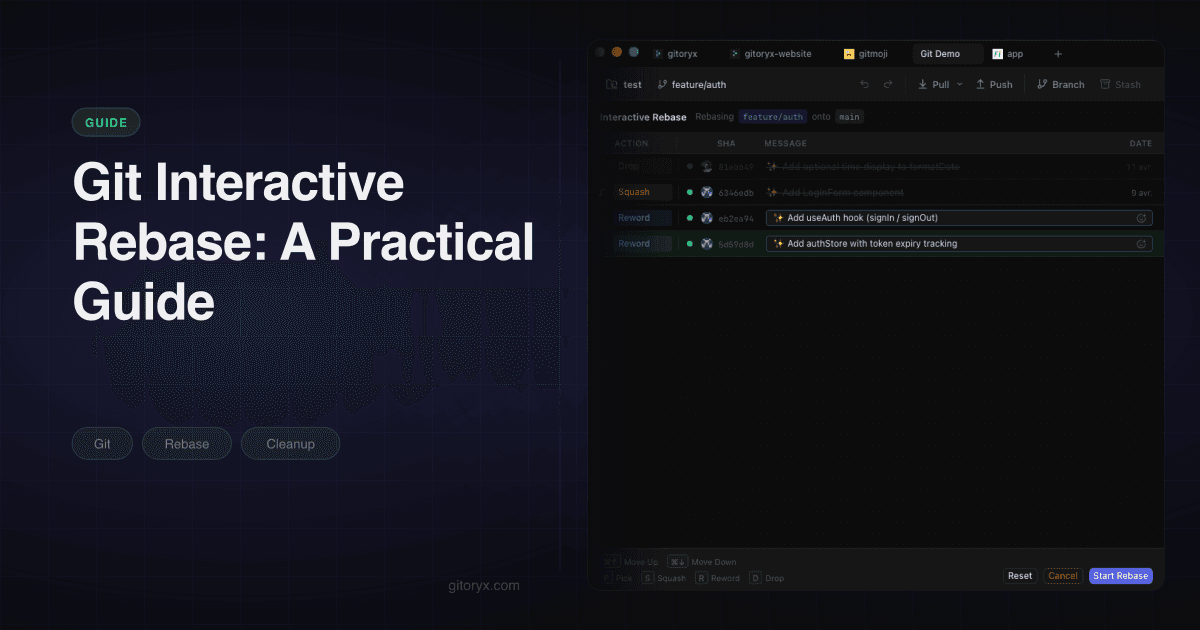
None of that is inherent to rebasing. It is inherent to driving rebasing through a text buffer, which is one of several places where a Git GUI beats the terminal.
Gitoryx runs the same git rebase -i underneath, but replaces the todo file with the
commit list itself. You drag commits into a new order and see the order you are actually
producing. Marking a commit as squash shows you the row it will fold into, explicitly,
instead of leaving it implied by position. Reword happens inline, and selecting a row
loads that commit's diff alongside it, which is when you are most likely to write a good
message.
If a conflict appears mid-replay, it lands in the same three-way conflict editor the app uses for merges, with ours, theirs and the merged output side by side, so you are reading three versions of a file rather than conflict markers in a text buffer.
#A rebase policy that survives contact with a team
Individual habits are easy. What breaks down is agreeing on this across four people who
each learned Git differently, especially once it has to interact with whatever
branching workflow the team already uses. A policy that works,
and that fits in five lines of CONTRIBUTING.md:
Rebase your own branch as often as you like, before review. No coordination needed, nobody else is affected, and it is how the branch becomes reviewable.
Do not rebase after review has started. Force-pushing mid-review invalidates the reviewer's place. GitHub will show comments as outdated and the reviewer has to re-read everything. Push follow-up commits instead and clean up at the end if you squash-merge.
Never rebase a branch that has been merged into another branch. The merge base disappears and the next merge duplicates everything.
Integrate upstream changes with rebase, not merge, on feature branches. git pull --rebase keeps your branch a straight line off main instead of accumulating "Merge
branch 'main' into feature/x" commits that carry no information. Set it as the default:
git config --global pull.rebase true
Decide once whether main is linear. If you squash-merge every pull request, main
is linear and per-branch tidiness matters less, so allow yourself to skip the cleanup. If
you merge with --no-ff and keep the individual commits, cleanup is mandatory because
those commits are permanent. Making this an explicit team decision removes most of the
recurring argument, and our
branching strategy tutorial covers how it interacts
with the rest of your workflow.
#When not to bother
Rebasing has a cost, and it is not always worth paying.
If your branch is three commits and they are already clear, leave them alone. If your team squash-merges every pull request, the individual commits on the branch are discarded at merge time anyway and cleaning them up is wasted effort. If you are the only person who will ever read the branch and it is going to be deleted tomorrow, ship it.
There is also a class of branch where rebasing is actively the wrong call. A long-lived integration branch that several people commit to is one. A branch that has already been merged somewhere is another. And a branch where the messy history is the point, such as a spike or an experiment you want a record of, should stay messy.
The case for cleaning up is strongest when someone else has to review the branch, when
the commits will survive into main unsquashed, or when the history is going to be used
later for debugging. That last one matters more than people expect. Six months from now,
when you are running git bisect or git blame on a regression, a commit called wip
tells you nothing and a well-scoped commit tells you almost everything.
That is the actual argument for interactive rebase. It is not about tidiness. It is that your commit history is the only record of why the code looks the way it does, and it is worth about ten minutes of effort before you hand it to anyone else.