
Git Branching Strategy: A Complete Guide
A solid Git branching strategy is the backbone of any professional development workflow. This guide covers everything from basic branch creation to team-wide strategies like GitFlow and trunk-based development.
Intermediate14 min readUpdated
What is a branching strategy?
A Git branching strategy is a set of rules and conventions that define how branches are created, merged, and managed across a development team. Common strategies include GitFlow, GitHub Flow, and trunk-based development.
The short version
- 1Protect your
mainbranch: no direct commits allowed - 2Create a feature branch for every change:
git checkout -b feature/name - 3Keep branches short-lived: merge within 1–3 days
- 4Open a pull request and require code review before merging
- 5Delete the branch after merging
| Aspect | GitFlow | GitHub Flow |
|---|---|---|
| Best for | versioned, scheduled releases | continuous delivery |
| Branch count | 5+ long-lived branches | 1 + short-lived feature branches |
| Complexity | high | low |
| Release process | release branch → tag | merge to main → deploy |
Why it matters
Your team is working on multiple features at once, hotfixes keep colliding with new code, and your main branch broke twice this week. The root cause is almost always the same: no clear branching strategy.
A Git branching strategy defines how your team creates, names, merges, and deletes branches. Without one, codebases become chaotic: teams step on each other's work, releases break, and hotfixes take hours. With the right strategy, your workflow becomes predictable and scalable.
Where it usually goes wrong
- Working directly on
mainormaster - Using vague branch names like
fixortest2 - Keeping feature branches open for weeks without syncing
- Merging without a code review or pull request
- Forgetting to delete merged branches
Branching strategies, step by step
Step 1: Understand the three main branching strategies
Before picking a strategy, understand the three most widely used models: GitFlow (structured, release-based), GitHub Flow (simple, continuous delivery), and trunk-based development (single main branch, short-lived branches).
Tip: For most small-to-medium teams shipping frequently, GitHub Flow or trunk-based development is simpler and faster than GitFlow.
Step 2: Set up your core branches
Every strategy starts with protected long-lived branches. At minimum, you need a
main(ormaster) branch that only receives tested, stable code.Terminal# Rename master to main (modern convention)git branch -m master maingit push origin maingit push origin --delete master# Set main as default in your remote (GitHub/GitLab settings)Step 3: Create feature branches for every change
Never commit directly to
main. Every feature, bug fix, or improvement gets its own branch. Use a consistent naming convention.Terminal# Create and switch to a feature branchgit checkout -b feature/user-authentication# Or with a ticket number prefix:git checkout -b feat/GIT-142-user-auth# Push to remote and track:git push -u origin feature/user-authenticationTip: Name branches with a type prefix:
feature/,fix/,hotfix/,chore/. Include ticket IDs when your team uses a project tracker.Step 4: Keep your branch up to date
Long-lived feature branches diverge from
mainover time, making merges painful. Pull changes regularly.Terminal# Option A: merge main into your branchgit checkout feature/user-authenticationgit merge main# Option B: rebase your branch onto main (cleaner history)git rebase main# Option C: pull with rebasegit pull --rebase origin mainCareful: Never rebase branches that are already shared with others: it rewrites history and causes conflicts for your teammates.
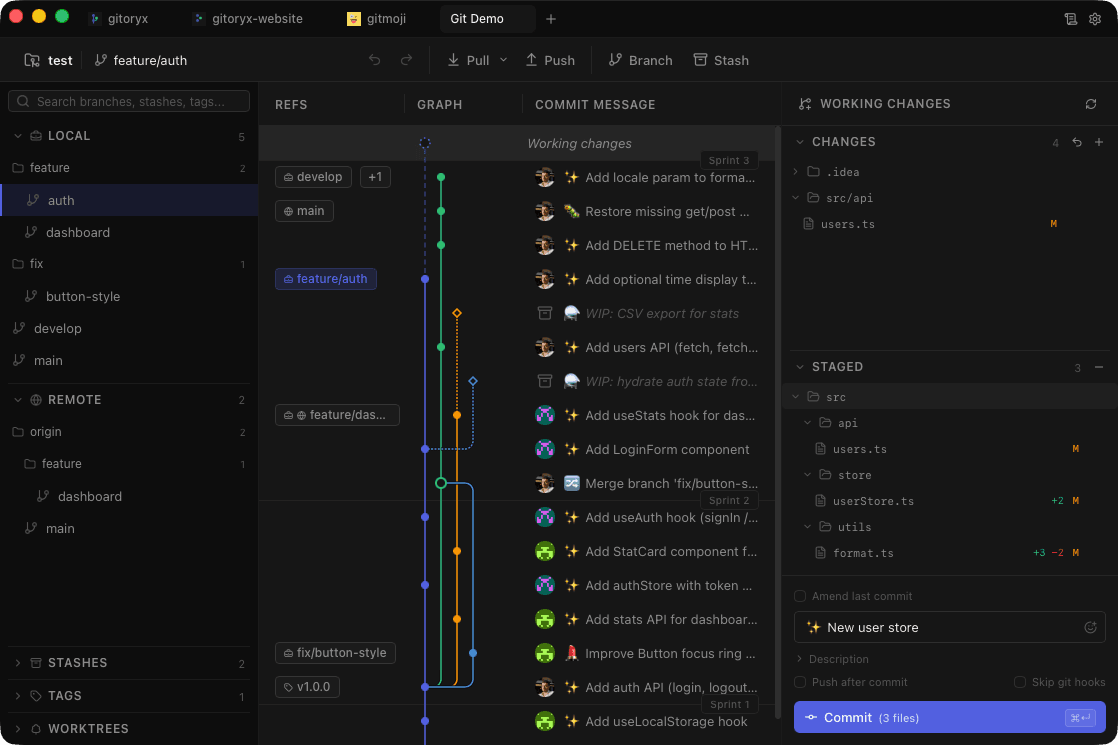
In Gitoryx: See all branches at once in the visual commit graph: current, remote, stale, and diverged.How it works Step 5: Open a pull request and code review
When your feature is ready, open a pull request (PR) targeting
main. Require at least one review before merging. This is the gate that keepsmainstable.Tip: Use a PR template to standardize descriptions. Include: what changed, why, and how to test.
Step 6: Merge and delete the branch
After approval, merge the PR and immediately delete the feature branch, both locally and on the remote.
Terminal# After merging via PR, delete the remote branchgit push origin --delete feature/user-authentication# Delete local branchgit branch -d feature/user-authentication# If the branch wasn't merged and you want to force delete:git branch -D feature/user-authenticationStep 7: Handle hotfixes with a separate flow
Critical production bugs need their own branch off
main(or your release branch). Fix, test, merge directly to main, tag the release, then merge back to any develop/release branches.Terminal# Create hotfix branch from maingit checkout maingit checkout -b hotfix/login-null-crash# ... make fix ...git add .git commit -m "fix null check in login handler"# Merge to maingit checkout maingit merge --no-ff hotfix/login-null-crashgit tag -a v1.2.1 -m "Hotfix: login null crash"# Merge back to develop if using GitFlowgit checkout developgit merge --no-ff hotfix/login-null-crash
Mistakes to avoid with branching strategies
- Committing directly to main
- The single most dangerous habit. One bad commit can break production for your entire team.
- Fix: Protect your
mainbranch in GitHub/GitLab settings. Require a PR and at least one approved review before any merge. - Keeping branches alive for weeks
- The longer a branch lives, the harder the merge becomes. Branches that stay open for weeks diverge massively from main.
- Fix: Keep branches small and focused on a single change. Aim to merge within 1–3 days. If a feature is large, break it into smaller PRs.
- Vague or inconsistent branch names
- Names like
test,fix,my-stuff, orjohn-branchmake it impossible to understand a branch's purpose at a glance. - Fix: Adopt a naming convention:
feature/,fix/,hotfix/,release/,chore/. Enforce it via branch protection rules or a team agreement. - Never deleting merged branches
- Over time, stale branches accumulate in the repo, cluttering the branch list and confusing new team members.
- Fix: Enable auto-deletion of merged branches in GitHub/GitLab. Periodically run
git remote prune originto clean up local references.
Branching strategies in Gitoryx
Gitoryx visualizes all your branches in a real-time commit graph. Create, switch, rename, and delete branches with a single click: no commands to memorize.
- See all branches at once in the visual commit graph: current, remote, stale, and diverged.
- Create, rename, checkout, and delete branches from a right-click menu: no commands needed.
- Spot diverged branches instantly: Gitoryx shows ahead/behind counts next to every branch name.
- Drag-and-drop merge: drag one branch onto another in the graph to initiate a merge.
- One-click PR creation: open a pull request directly from your current branch without leaving the app.
Free plan · no account required · macOS, Windows and Linux
Branching strategies: frequently asked questions
- What is the best Git branching strategy for a small team?
- For small teams (2–10 developers) shipping frequently, GitHub Flow is ideal: one
mainbranch, short-lived feature branches, pull requests, and immediate merges. It is simple, fast, and avoids the overhead of GitFlow. - What is the difference between GitFlow and GitHub Flow?
- GitFlow uses multiple long-lived branches (
main,develop,release,hotfix) and is best for versioned software with scheduled releases. GitHub Flow uses a singlemainbranch with short-lived feature branches and is designed for continuous delivery. - How do I rename a branch in Git?
- Run
git branch -m old-name new-nameto rename a local branch. To update the remote, rungit push origin --delete old-namethengit push -u origin new-name. - What is a protected branch?
- A protected branch is a branch with rules enforced by your Git host (GitHub, GitLab, Bitbucket) that prevent direct pushes, require pull requests, and enforce status checks before merging. Always protect
main. - How do I see all branches in a Git repository?
- Run
git branchfor local branches,git branch -rfor remote branches, andgit branch -afor both. Usegit log --oneline --graph --allfor a visual overview in the terminal. - Should I use merge or rebase for feature branches?
- Both work. Rebase (
git rebase main) creates a cleaner linear history. Merge (git merge main) preserves context and is safer on shared branches. Many teams rebase locally before opening a PR, then use a merge commit for the PR itself. - How do I delete a remote branch?
- Run
git push origin --delete branch-name. In GitHub/GitLab, you can also delete branches directly from the pull request page after merging. - What is trunk-based development?
- Trunk-based development means all developers commit to a single branch (
mainortrunk) multiple times per day. Feature flags hide incomplete features. It maximizes continuous integration speed but requires strong automated testing.
Related reading
- Git Rebase vs Merge: What's the Difference?Tutorial · 10 min
- How to Resolve Merge Conflicts in GitTutorial · 12 min
- The Branching Model Everyone Half-ImplementsBlog · 13 min