How to Resolve Merge Conflicts in Git
Merge conflicts are one of the most common pain points for Git users. This guide walks you through every step: detecting, understanding, and resolving conflicts, whether you prefer the CLI or a visual Git GUI like Gitoryx.
Beginner12 min readUpdated
What is a merge conflict?
A merge conflict occurs when Git cannot automatically reconcile changes from two branches because both modified the same lines of a file. Git pauses the merge and asks you to manually choose which changes to keep.
The short version
- 1Run
git statusto find conflicted files - 2Open the conflicted file and locate the
<<<<<<<markers - 3Edit the file to keep the correct version and delete all markers
- 4Run
git add <file>to mark the conflict as resolved - 5Run
git committo complete the merge
Why it matters
You run git merge or git pull and Git stops dead: "CONFLICT (content): Merge conflict in src/app.js". Your terminal is frozen, your files are filled with <<<<<<< markers, and you have no idea which version to keep. Sound familiar?
Merge conflicts happen every day in collaborative development: any time two developers edit the same lines of code. Knowing how to resolve them quickly and safely is a core Git skill. Getting it wrong means corrupting shared code or losing work.
Where it usually goes wrong
- Accepting all incoming changes without reading them
- Forgetting to remove conflict markers (
<<<<<<<,=======,>>>>>>>) before committing - Committing in a conflicted state
- Aborting the merge when a simple resolution was possible
Merge conflicts, step by step
Step 1: Understand what triggered the conflict
A conflict usually happens after
git merge,git rebase, orgit pull. When Git encounters incompatible changes, it marks the conflicted files and pauses the operation.Terminal# Attempt a mergegit merge feature/login# Git output when a conflict occurs:# Auto-merging src/auth.js# CONFLICT (content): Merge conflict in src/auth.js# Automatic merge failed; fix conflicts and then commit the result.Tip: Run
git statusimmediately after a conflict to see which files need resolution.Step 2: Identify all conflicted files
Use
git statusto list every file in a conflicted state. Look forboth modifiedin the output.Terminalgit status# Output:# On branch main# You have unmerged paths.# (fix conflicts and run "git commit")## Unmerged paths:# (use "git add <file>..." to mark resolution)# both modified: src/auth.jsStep 3: Open the conflicted file and read the markers
Git inserts conflict markers directly into the file. The section between
<<<<<<<and=======is your current branch's version. The section between=======and>>>>>>>is the incoming branch's version.JavaScript<<<<<<< HEADfunction login(user) { return authenticate(user, { timeout: 5000 });}=======function login(user, options = {}) { return authenticate(user, options);}>>>>>>> feature/loginTip: HEAD is always your current branch. The label after
>>>>>>>is the branch being merged in.Step 4: Resolve the conflict
Edit the file to keep the version you want, or combine both. Delete all three conflict markers (
<<<<<<<,=======,>>>>>>>) and leave only clean, valid code.JavaScript// Resolved version - combining both approaches:function login(user, options = { timeout: 5000 }) { return authenticate(user, options);}Careful: Never commit a file that still contains
<<<<<<<,=======, or>>>>>>>markers. Your code will break.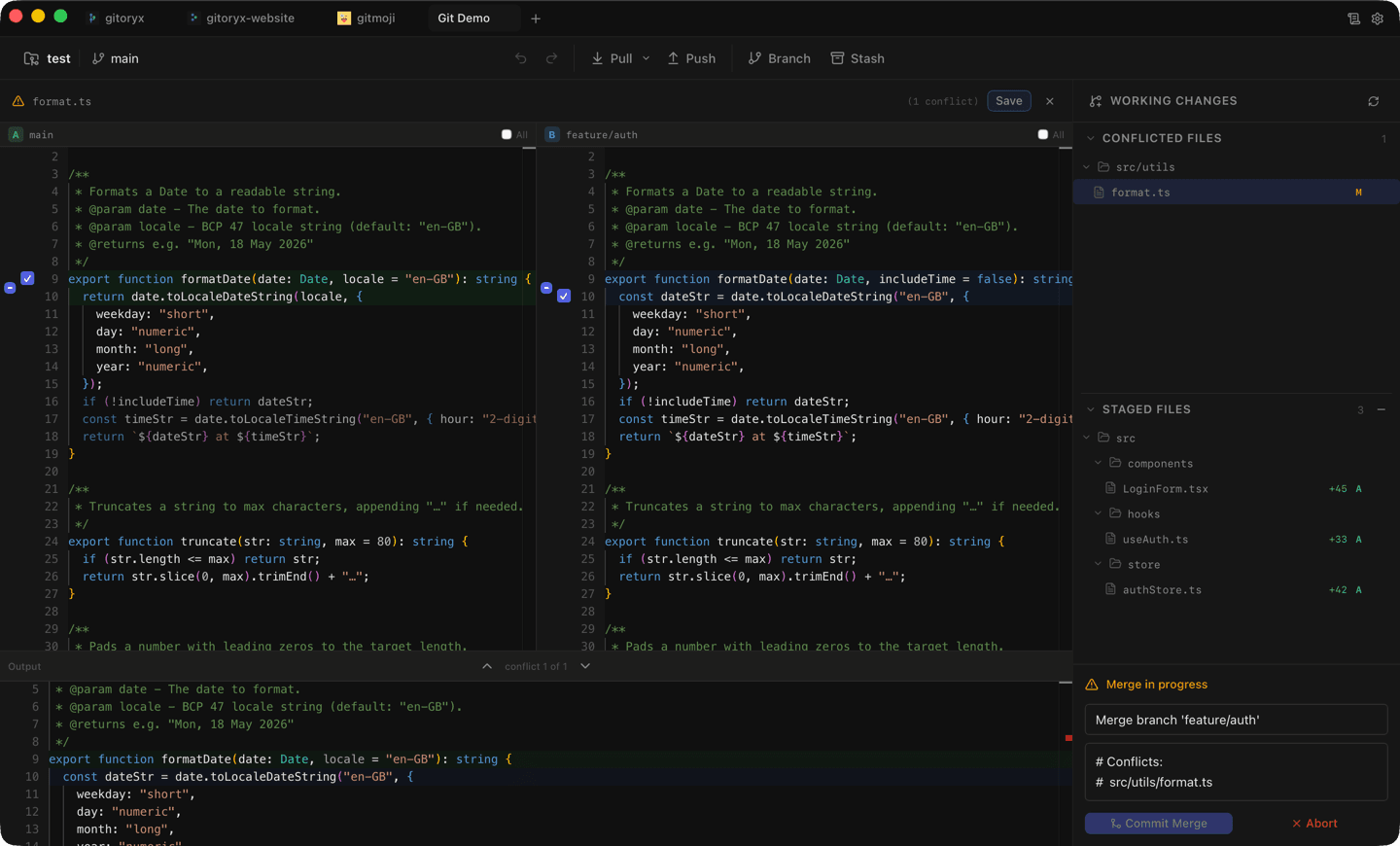
In Gitoryx: Conflicted files are highlighted with a warning badge in the file tree: no need to hunt through git statusoutput.How it worksStep 5: Stage the resolved file
Once you've resolved and saved the file, tell Git the conflict is fixed by staging it with
git add.Terminalgit add src/auth.js# Verify all conflicts are resolved:git status# Should show: "All conflicts fixed but you are still merging."Step 6: Complete the merge with a commit
After all conflicts are resolved and staged, finish the merge by creating a commit. Git will pre-fill a merge commit message.
Terminalgit commit# Git opens your editor with a default message like:# "Merge branch 'feature/login' into main"# Save and close to complete the merge.Tip: If you want to abort the entire merge and go back to your pre-merge state, run
git merge --abortbefore committing.Step 7: Verify the result
Check your commit history to confirm the merge completed correctly.
Terminalgit log --oneline --graph -6# Expected output shows a merge commit:# * a3f1c2d Merge branch 'feature/login' into main# |\# | * 9b2e4f1 Add flexible login options# * | 7c3d5a8 Add login timeout# |/# * 1a2b3c4 Initial auth setup
Mistakes to avoid with merge conflicts
- Leaving conflict markers in the file
- The most common mistake: committing code that still contains
<<<<<<<,=======, or>>>>>>>markers. This breaks your application immediately. - Fix: Always run
git diff --checkbefore committing. It flags any remaining conflict markers. - Using `git checkout` to wipe both versions
- Running
git checkout -- file.jsduring a conflict discards both the current and incoming changes, losing the merge entirely. - Fix: Use
git checkout --ours file.jsto keep your version, orgit checkout --theirs file.jsto keep the incoming version, only if you're sure. - Committing without staging all resolved files
- If you resolved three conflicted files but only staged two,
git commitwill fail or create a partial merge. - Fix: Always run
git statusbefore committing to confirm every conflict is resolved and staged. - Ignoring why the conflict happened
- Blindly accepting one side without understanding both changes often introduces logic bugs that are hard to trace.
- Fix: Read both versions carefully. Talk to the developer who made the incoming changes if you're unsure which version is correct.
Merge conflicts in Gitoryx
Gitoryx shows conflicts visually: every conflicted file is highlighted with a warning badge, and a side-by-side diff editor lets you choose which version to keep (or combine both) in one click.
- Conflicted files are highlighted with a warning badge in the file tree: no need to hunt through
git statusoutput. - The built-in conflict editor shows a three-panel view: your version, the incoming version, and the merged result.
- Click to accept your changes, incoming changes, or both with a single click: no manual marker deletion.
- Gitoryx validates that no conflict markers remain before letting you commit, preventing the most common mistake.
- The visual commit graph shows the merge point and both branch histories side by side.
Free plan · no account required · macOS, Windows and Linux
Merge conflicts: frequently asked questions
- What causes a merge conflict in Git?
- A merge conflict occurs when two branches modify the same lines of the same file, or when one branch deletes a file that another branch modified. Git cannot determine which version to keep, so it pauses and asks you to decide.
- How do I abort a merge and go back to my previous state?
- Run
git merge --abortat any point during an unfinished merge. This resets your working directory to the state it was in before the merge started. - What do the conflict markers mean?
<<<<<<< HEADmarks the start of your current branch's version.=======separates the two versions.>>>>>>> branch-namemarks the end of the incoming branch's version. Everything between these markers must be resolved manually.- Can I accept one side of a conflict automatically?
- Yes. Use
git checkout --ours filenameto keep your version, orgit checkout --theirs filenameto keep the incoming version entirely. Only do this when you're certain which version is correct. - How do I prevent merge conflicts?
- Pull frequently from the main branch to keep your feature branch up to date (
git pull origin main). Communicate with your team about which files you're working on. Keep branches short-lived and focused on a single feature. - What is a merge tool in Git?
- A merge tool is an external editor or built-in interface that displays conflicted files side by side, making it easier to compare and choose between versions. Configure one with
git config --global merge.tool <toolname>or use a visual Git client like Gitoryx. - What happens if I commit with unresolved conflict markers?
- Git will allow it (unless prevented by a hook), but your code will contain raw conflict marker text, breaking any file that is parsed: JavaScript, CSS, JSON, etc. Always run
git diff --checkbefore committing. - Does git rebase also cause merge conflicts?
- Yes. Rebasing re-applies commits one at a time, so you may get a conflict at each commit. Resolve the conflict, run
git add, then continue withgit rebase --continue. Rungit rebase --abortto cancel.
Related reading
- Git Branching Strategy: A Complete GuideTutorial · 14 min
- How to Undo a Commit in Git (The Right Way)Tutorial · 10 min
- The Job Moved From Writing Code to Reviewing ItBlog · 9 min