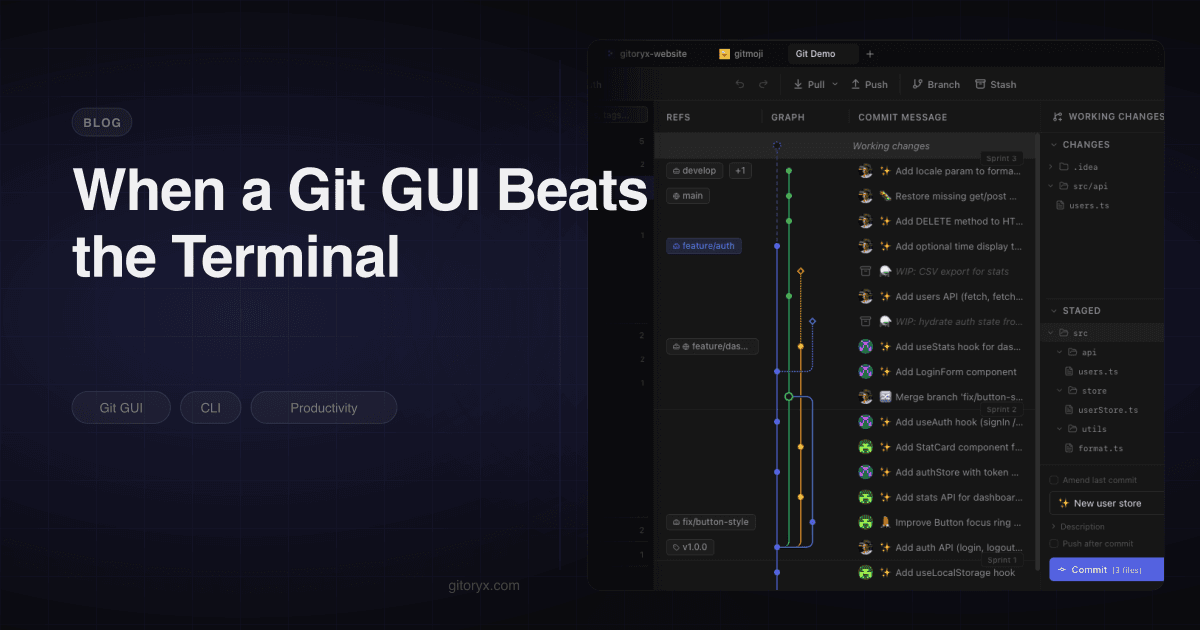
The GUI-versus-CLI argument is usually framed as a question about skill level, which is why it never goes anywhere. One side says GUIs are for people who have not learned Git. The other side says the terminal is performative. Both are describing a caricature.
What actually happens in practice is that developers who use Git heavily end up using
both, and they do not think about it much. They type git status and git commit a
hundred times a week and never open a client for it. Then a rebase goes wrong, or a merge
produces twelve conflicts, or someone asks when a bug was introduced, and they open
something visual.
The interesting question is where that line sits, and why it sits there. It turns out the split is not arbitrary. The operations where a GUI wins share a property: the bottleneck is understanding the current state, not typing the command.
#The decision table, if you just want the answer
Skip the reasoning below if you already know what you are trying to do. Here is the practical call for the operations people actually ask about, before the full argument for why each one falls where it does.
| Operation | Use | Why |
|---|---|---|
| Partial staging (selecting specific lines/hunks) | GUI | Clicking the lines you want beats stepping through git add -p's per-hunk prompts, especially on a messy working tree |
| Interactive rebase | GUI | Dragging commits into order gives instant feedback; editing a todo file in $EDITOR gives none until the replay runs |
| Conflict resolution (multiple files/hunks) | GUI | A three-way view shows ours/theirs/result at once, instead of hand-reading <<<<<<< markers file by file |
| Reading a merge-heavy history | GUI | A rendered graph keeps branches in stable lanes; --graph --oneline degrades past four concurrent branches |
| Cherry-pick | GUI for the lookup, either for the apply | Finding the right commit on a branch you are not on is the hard part; dragging it over removes that lookup |
| Bisect | GUI | You need to see where the current candidate sits in history, not just its hash and subject line |
| Blame | GUI | Following a change to its full diff needs file context that a wrapped terminal blame does not give you |
| Stash management (more than one or two stashes) | GUI | stash@{2} tells you nothing; seeing the diff next to the message does |
status, log -1, diff --stat, commit, push, pull | CLI | One line, no state to reason about, already in muscle memory |
| Scripted operations, CI, bulk changes across repos | CLI | A GUI cannot be piped or run headless |
The rest of this article is the reasoning behind each row, plus the property that predicts which side any operation you don't see here will fall on.
#The property that predicts it
Before going through the operations, it is worth naming the pattern, because it explains the exceptions too.
Every Git operation has two costs. There is the cost of expressing what you want, which is typing, and the cost of knowing what you want, which is understanding the state you are in. The terminal is extremely good at the first and offers nothing for the second. A GUI is worse at the first, because pointing is slower than typing, and can be dramatically better at the second, because it can render state instead of describing it.
So the split falls out mechanically. git status is all expression and no state, since
the answer is a short list and there is nothing to reason about. That belongs in the
terminal forever. An interactive rebase across nine commits is almost all state: which
commits exist, what order they are in, which one each fixup attaches to, where the
conflicts will land. The typing is trivial and the reasoning is the whole job.
This also explains why the same person can be adamant that the terminal is faster and also have a mergetool configured. A three-way merge is pure state. Nobody resolves eleven conflicts by reading markers in a file because they enjoy the challenge; they do it once, find it slow, and configure something visual.
A useful way to check where an operation falls: if you would draw a diagram to explain the operation to a colleague, it is a state problem and a GUI will help. If you would just tell them the command, it is not.
#Interactive rebase
This is the clearest case, and the one most likely to convert a terminal purist.
In the terminal, git rebase -i main opens a text file where you edit keywords in front
of commit hashes. The commits are listed oldest first, which is the inverse of git log.
squash and fixup fold into the line above, which you have to hold in your head while
reordering. You save the file and Git begins replaying, and you find out whether you got
it right several commits later.
There is no feedback loop. You are writing a program in a text buffer with no way to check it before it runs.
In a client with a proper rebase editor, the same operation is a list of commits you drag. The order you see is the order you get. Marking a commit as a fixup shows you which commit it will merge into. The graph updates as you go, so the shape of the result is visible before you commit to it.
The commands underneath are identical. What changes is the error rate, and the error rate is the reason people avoid interactive rebase in the first place. We covered the operations themselves in the interactive rebase guide; this is the argument for why the interface matters as much as the mechanics.
#Bisect
git bisect is a binary search through history. The command sequence is not hard: mark
a known-good commit, mark a known-bad commit, then repeatedly test whatever Git checks
out and mark it good or bad.
What the terminal does not give you is location. After four steps you are sitting on some commit and the only thing on screen is a short hash and a subject line. You have no sense of where that commit sits in the history, which branch it came from, whether it is a merge commit that pulled in fifty other changes, or how much of the range is left.
That information exists in the history, and a client can put it in front of you. Choosing the good and bad endpoints by clicking commits in a rendered history removes the step where you copy a hash and get it wrong. Keeping the candidates on screen with your verdicts recorded against them removes the other one, where you lose track of what you have already judged.
Neither changes the algorithm. Both remove the manual bookkeeping around it, which is where the mistakes actually happen.
#Conflict resolution
The terminal's answer to a conflict is to write markers into the file:
<<<<<<< HEAD
  const timeout = 30_000;
=======
  const timeout = config.requestTimeout;
>>>>>>> feature/configurable-timeouts
For one conflict in one file, that is fine. For a merge with eleven conflicts across four files, it is a slog, and it is the situation where mistakes are most expensive because you are hand-editing code with no compiler feedback until you are done.
A three-way editor shows ours, theirs, and the merged result as three panes. You pick per block rather than per file. Identical blocks that Git flagged only because of surrounding context can be auto-resolved in bulk. You can see the file as it will be after the merge, not as a soup of markers.
The time saving scales with the number of conflicts, which is precisely why this is the operation most terminal users have already made an exception for. Even people who resolve everything else in Vim have a mergetool configured. Our merge conflict tutorial walks through both approaches.
#Partial staging
git add -p is a good command. It walks you through the hunks in your working tree and
asks about each one. It also has a dozen single-letter responses, no way to jump to a
specific hunk, and no way to go back more than one step. Splitting a hunk with s works
until the split point is not where you needed it, at which point you are in e mode
editing a diff by hand.
Staging from the diff itself is faster for the same result. You see the whole file, click the three lines you meant to stage, and skip the rest. There is no sequence to work through and nothing to remember.
This matters more than it used to, because the case for small focused commits has gotten
stronger. If you are committing frequently while an AI agent generates code, you are
selecting from a larger and messier working tree than you would produce by hand, and the
friction of git add -p is enough to make people commit everything instead.
#Reading history
git log --oneline --graph --all exists and it works. On a linear branch it is genuinely
all you need.
The problem is that ASCII graphs degrade badly. Past about four concurrent branches the lines cross in ways that are hard to follow, and the layout is recomputed differently depending on what you filter, so the same repository does not look the same twice. A merge-heavy repository with several long-lived feature branches produces output that is technically correct and practically unreadable.
A rendered 2D graph does not have that limit. Branches get stable lanes, merges are visible as joins rather than as characters, and tags sit inline where they happened. On a repository where four people are working in parallel, this is not a convenience, it is the only way to answer questions like "did this fix make it into the release branch" without running three separate commands.
#Blame
git blame prints one line per source line, each prefixed with a hash, an author and a
date. On a wide file this wraps, and once it wraps it is difficult to read at all.
The information you usually want from blame is not "who" but "what change introduced
this, and what else did that change touch". Getting there from the terminal means noting
the hash, running git show, and then repeating for the next line you are curious about.
A visual blame keeps the file readable, colours by commit so you can see the boundaries of each change, and lets you jump straight from a line to the full diff of the commit that introduced it. That is a different workflow, not a prettier version of the same one.
#Three more that are less obvious
Stashes. git stash list gives you stash@{0}, stash@{1} and a message that is
usually the auto-generated "WIP on main". Working out which one holds the thing you want
means git stash show -p stash@{2} for each in turn. A stash list with the diff visible
next to it removes the guessing entirely, and it is the reason most people's stash list
has eleven entries they are afraid to delete. If your stash workflow stops at
pop, our stash tutorial covers the rest.
Cherry-pick. The command is easy once you have the hash. Getting the hash is the work, because you are looking for a specific commit on a branch you are not on. Dragging a commit from one lane of the graph onto another is the same operation with the lookup step removed.
Comparing two branches. git log --left-right --oneline main...feature/billing answers
what has diverged, and the output takes a moment to parse every time because the < and
> markers are easy to read backwards. A side-by-side branch comparison is one of those
features you do not miss until you have used it, and then you use it before every merge.
#The summary
| Operation | Faster where | Why |
|---|---|---|
status, log -1, diff --stat | Terminal | No state to reason about |
| Commit, push, pull, fetch | Terminal | Memorised, one line |
| Branch create and switch | Either | Depends on whether you remember the name |
| Partial staging | GUI | Selecting from a large diff |
| Interactive rebase | GUI | Planning a sequence |
| Conflict resolution | GUI | Three versions of a file at once |
| Bisect | GUI | Search range needs a position |
| Reading a merge-heavy history | GUI | The answer is a shape |
| Blame | GUI | Needs file context |
| Stash management | GUI | Contents are not in the list |
| Bulk operations, scripting, CI | Terminal | A GUI cannot be piped |
| Anything over SSH | Terminal | No alternative |
#Making the terminal side genuinely good
If you are going to keep using the terminal for most things, and you should, it is worth noting that the default experience is not the best one available. A lot of "the CLI is unreadable" complaints are really complaints about the defaults.
# Syntax-highlighted, word-level diffs.
brew install git-delta
git config --global core.pager delta
git config --global delta.navigate true
git config --global delta.side-by-side true

# A log format that is actually scannable.
git config --global alias.lg \
  "log --graph --abbrev-commit --date=relative \
   --format=format:'%C(bold blue)%h%C(reset) %C(white)%s%C(reset) %C(dim white)%an%C(reset)%C(auto)%d%C(reset)'"
delta in particular changes the calculation on diffs. Side-by-side word-level
highlighting in the pager closes most of the gap with a GUI diff viewer for reviewing a
single file, which moves "reading a diff" out of the GUI column for a lot of people.
Terminal UIs are the other half of this. lazygit and gitui give you a keyboard-driven
interface with staging, branch management and an interactive rebase, inside a terminal
window. They are genuinely good and they cover several of the operations listed above.
Where they stop is the graph: a terminal grid cannot render a wide DAG legibly, so on a
merge-heavy repository you are back to a list.
Being honest about this matters. The argument for a GUI is not that the terminal is primitive. It is that a small number of specific operations are easier when you can see the state, and the graph is the one that a terminal cannot reproduce at all.
#Where the terminal still wins outright
None of the above is an argument for closing the terminal. There are whole categories where a GUI is the wrong tool and always will be.
Anything scripted. CI pipelines, release scripts, git hooks, git bisect run with a
test command. A GUI cannot participate in a pipeline.
Bulk operations. Updating forty repositories, rewriting author metadata across a
history with git filter-repo, deleting every merged branch with a for loop. The shell
is built for this and nothing else comes close.
Quick checks. git status, git log -1, git diff --stat. If you already have a
terminal open, reaching for a window is slower, full stop.
Anything you have memorised. This is the honest core of the terminal argument. A command you type without thinking costs nothing. The GUI advantage only appears when the operation requires thought, because that is when seeing the state saves you more than typing costs.
Remote and constrained environments. SSH into a server, a container, a CI debug session. There is no GUI there.
#The actual skill
The developers who are fastest with Git are not the ones who refuse to use a mouse, and they are not the ones who never open a terminal. They are the ones who stopped thinking about it and reach for whichever surface matches the shape of the problem.
Short command you know by heart: type it. Operation where you need to see the state before you act: open the graph. That is the entire heuristic, and it holds up better than any argument about what real developers do.
The setup that follows from it is unremarkable. A terminal open in your project, a client
open on the same repository, and no rule about which one you use for what. They watch the
same working directory, so anything you do in one appears in the other immediately. Several
clients ship a shell helper for the crossing point, so you can open the current directory
from a prompt the way code . does, and our
tutorial on opening a repository from the terminal
covers setting that up.
The only habit worth building deliberately is noticing when you are stuck. If you have
run git log --graph three times in a row and still cannot work out what happened, that
is the signal. It is not a failure of skill, it is an operation that needed a picture and
you were trying to read it as text.