
Git Config: How to Configure Git for Your Workflow
Before writing your first commit, Git needs to know who you are. git config controls everything from your identity to your preferred editor, merge strategy, and custom aliases. This guide covers local, global, and system-level configuration.
Beginner8 min readUpdated
What is git config?
git config reads and writes Git configuration values. Settings can be scoped to a single repository (local), your user account (global), or the entire system. Global settings live in ~/.gitconfig.
The short version
- 1Set your name:
git config --global user.name 'Your Name' - 2Set your email:
git config --global user.email 'you@example.com' - 3Set your editor:
git config --global core.editor 'code --wait' - 4Verify:
git config --list
Why it matters
Your commits show up with the wrong author name, or Git keeps opening a text editor you don't recognize. You've never configured Git and now things aren't working the way you expect.
Git's default settings are minimal by design. A few minutes of configuration (your name, email, default editor, and a handful of aliases) will save you hours of friction and make every commit properly attributed.
Where it usually goes wrong
- Not setting user.name and user.email before making the first commit
- Mixing up global and local config, ending up with the wrong email on work commits
- Not knowing where the config file actually lives
- Setting config values with typos that Git silently accepts
Git config, step by step
Step 1: Set your name and email (global)
This is the first thing to do after installing Git. These values appear on every commit you make.
Terminalgit config --global user.name "Jane Doe"git config --global user.email "jane@example.com"Tip: Use the email address associated with your GitHub/GitLab account so contributions are linked to your profile.
Step 2: Override config for a specific repository
Omit
--globalto set a value only for the current repo. Useful when you have a work laptop but also contribute to personal projects with a different email.Terminalcd ~/work/company-projectgit config user.email "jane@company.com"Step 3: Set your default editor
Git opens a text editor when you write multi-line commit messages or run interactive rebase. Set it to your preferred editor.
Terminal# VS Codegit config --global core.editor "code --wait"# Vimgit config --global core.editor "vim"# Nanogit config --global core.editor "nano"Step 4: Set the default branch name
Recent Git versions let you configure the initial branch name when creating new repos. Most teams use
mainnow.Terminalgit config --global init.defaultBranch main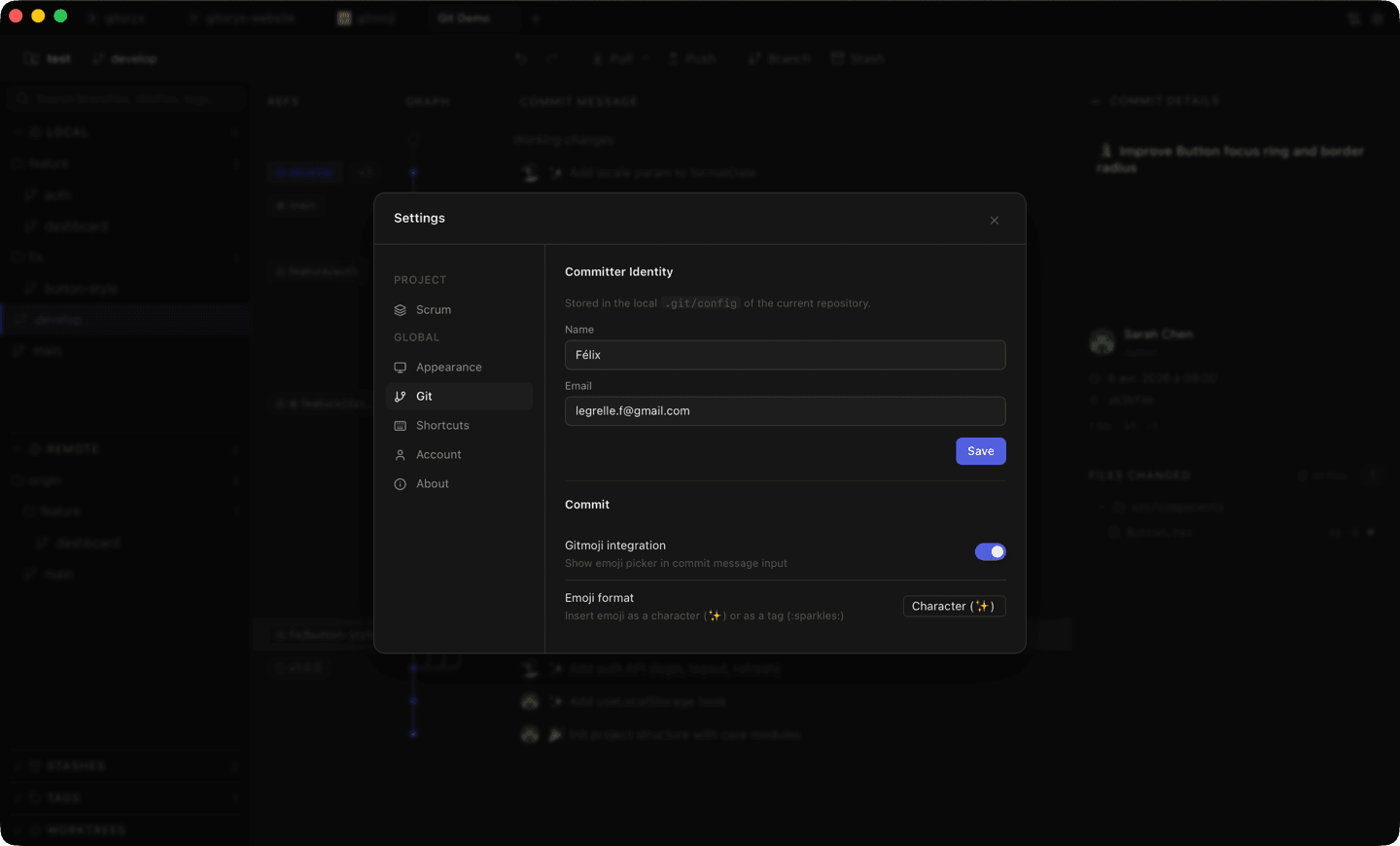
In Gitoryx: Reads your global and local user.name / user.email automaticallyHow it works Step 5: Create useful aliases
Aliases let you create shortcuts for long Git commands you type frequently.
Terminalgit config --global alias.st "status"git config --global alias.lg "log --oneline --graph --decorate --all"git config --global alias.undo "reset --soft HEAD~1"# Usage:git stgit lgTip: Store your aliases in your dotfiles to carry them across machines.
Step 6: View and edit your config
List all active settings to verify your config, or open the file directly.
Terminal# List all settings and their origingit config --list --show-origin# Open the global config in your editorgit config --global --edit
Mistakes to avoid with git config
- Using a personal email on work commits
- If you have one global email and you forget to set a repo-local one for work projects, your personal email ends up in company commit history.
- Fix: Set
user.emailat the repo level for work projects, or use Git'sincludeIfto auto-apply a work config for all repos under a certain path. - Not configuring line endings
- On Windows, Git may convert line endings (CRLF) in ways that produce diffs on every file even when nothing changed.
- Fix: Set
git config --global core.autocrlf trueon Windows, orinputon macOS. - Typos in config values
- Git doesn't validate most config values, so a typo like
code --waiwill silently break your editor setting. - Fix: Test settings immediately after setting them, and use
git config --listto double-check.
Git config in Gitoryx
Gitoryx reads your Git config automatically and displays your name and email in the commit panel, so you can verify your identity before every commit.
- Reads your global and local user.name / user.email automatically
- Displays the commit author in the visual commit panel
- No extra configuration needed: just install and open your repo
Free plan · no account required · macOS, Windows and Linux
Git config: frequently asked questions
- Where is the Git global config file located?
- On macOS it's
~/.gitconfig. On Windows it's usuallyC:\Users\<YourName>\.gitconfig. You can open it directly withgit config --global --edit. - What is the difference between --global and --local config?
--globalapplies to all repositories for your user account.--local(the default) applies only to the current repository and is stored in.git/config. Local settings override global ones.- How do I check my current Git config?
- Run
git config --listto see all active settings. Add--show-originto see which file each value comes from. - Can I use different emails for different projects automatically?
- Yes. Use Git's
includeIfdirective in your global~/.gitconfigto automatically load a different config file for all repos under a specific directory path.
Related reading
- Git Commit: The Complete Beginner's GuideTutorial · 9 min
- Git Add: How to Stage Changes Before a CommitTutorial · 7 min
- Git Clone: How to Copy a RepositoryTutorial · 8 min