
Git Add: How to Stage Changes Before a Commit
git add is the first step in every Git commit workflow. This tutorial explains how staging works, how to add specific files or hunks, and how to avoid the common mistake of committing unwanted changes.
Beginner7 min readUpdated
What is git add?
git add moves changes from your working directory into the staging area (also called the index). Only staged changes are included in your next commit. You can stage entire files, specific files, or even individual hunks within a file.
The short version
- 1Run
git statusto see what has changed - 2Stage a file:
git add <file> - 3Stage all changes:
git add . - 4Stage partial changes:
git add -p <file> - 5Review staged changes:
git diff --staged - 6Commit:
git commit -m 'your message'
Why it matters
You've made changes to several files but you only want to commit one of them. Or you ran git commit and nothing happened because you forgot to stage anything first. Sound familiar?
The staging area is what makes Git so precise. It lets you build exactly the commit you want (including partial changes within a single file) rather than blindly committing everything at once. Mastering git add is the first step to writing a clean, readable Git history.
Where it usually goes wrong
- Running
git commitwithout staging anything first - Using
git add .and accidentally staging files you didn't intend to commit - Staging a file and then editing it again without re-staging
- Confusing
git add(staging) with saving a file in your editor
Git add, step by step
Step 1: Check what has changed
Before staging anything, get a clear picture of what's modified in your working directory.
Terminalgit status# Output:# Changes not staged for commit:# modified: src/app.ts# modified: src/utils.ts# Untracked files:# README.mdTip: Red = not staged. Green = staged. Untracked files have never been added to Git before.
Step 2: Stage a specific file
Pass the file path to
git addto stage only that file. You can list multiple files separated by spaces.Terminal# Stage one filegit add src/app.ts# Stage multiple filesgit add src/app.ts src/utils.ts# Stage all files in a directorygit add src/Step 3: Stage all changes at once
git add .stages every modified and untracked file in the current directory and below. Useful when you want to commit everything, but be careful: it picks up files you may not intend to track.Terminalgit add .# Verify what's now stagedgit statusCareful: Always check your
.gitignorebefore runninggit add .to make sure build artifacts, secrets, and node_modules aren't being staged.Step 4: Stage parts of a file (interactive / patch mode)
If you only want to commit some of the changes in a file, use the
-p(patch) flag. Git will show you each changed hunk and ask: stage it (y), skip it (n), split it (s), or edit it manually (e).Terminalgit add -p src/app.ts# Git shows each hunk:# @@ -10,6 +10,7 @@# - const old = true;# + const updated = true;# Stage this hunk? [y,n,s,e,?]Tip: Patch mode is the key to writing atomic commits: one logical change per commit.
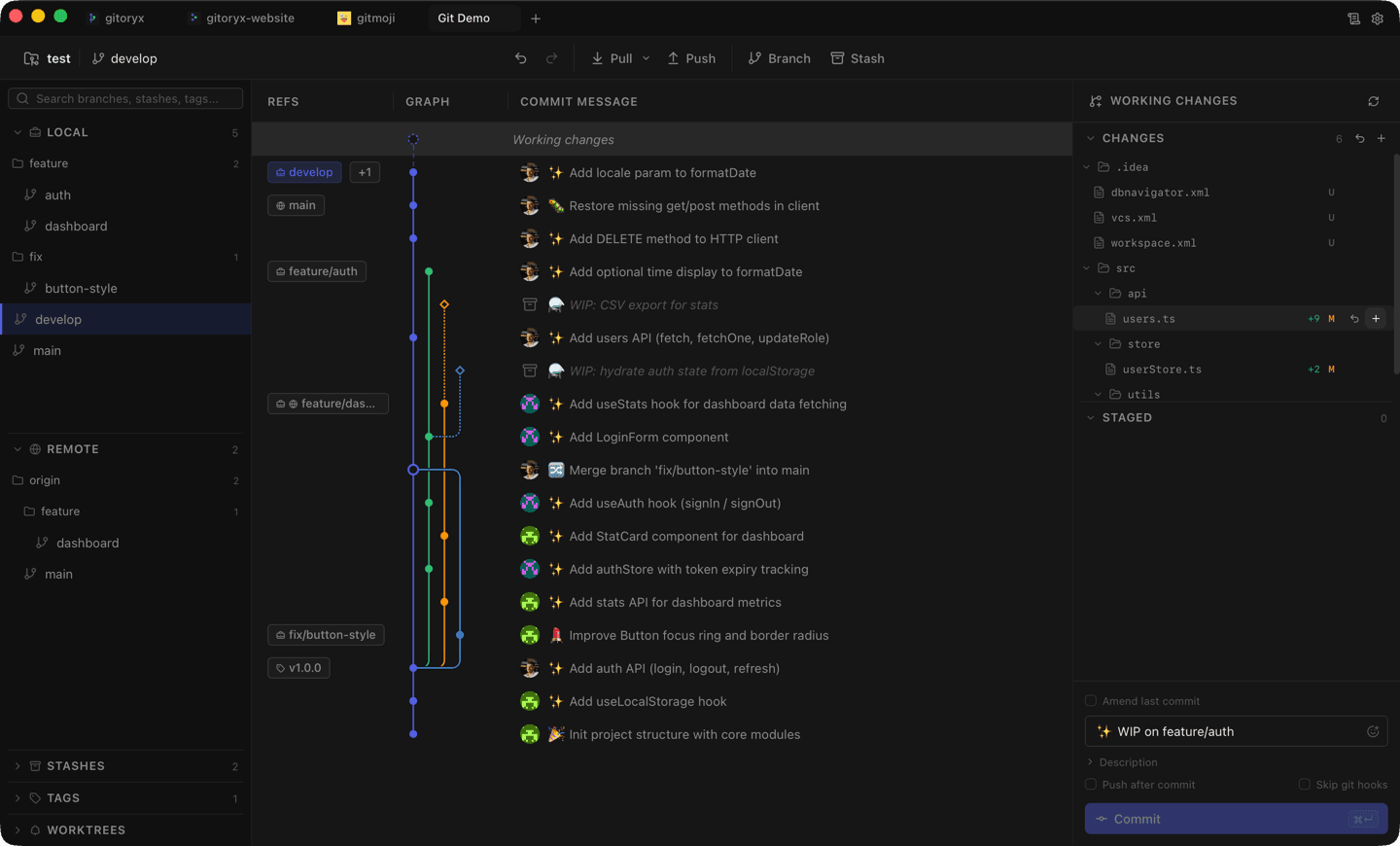
In Gitoryx: See all changed files color-coded in the commit panelHow it works Step 5: Review what is staged before committing
Use
git diff --staged(or--cached) to see the exact diff of everything that will go into your next commit.Terminalgit diff --stagedStep 6: Unstage a file if you change your mind
If you staged something by mistake, you can remove it from the staging area without losing your changes.
Terminal# Modern Git (2.23+)git restore --staged src/utils.ts# Older Gitgit reset HEAD src/utils.ts
Mistakes to avoid with git add
- Staging everything with `git add .` without reviewing
- This often results in committing debug code, editor config files, or environment variables.
- Fix: Run
git statusandgit difffirst. Usegit add -pfor fine-grained control. - Editing a file after staging it
- Git records the state of the file at the moment you run
git add. Any edits after that are not staged. - Fix: Re-run
git add <file>after every edit, or usegit diff --stagedto confirm what's actually staged. - Not adding new (untracked) files
git add .is needed for new files that Git has never seen before, since they won't be staged by other means.- Fix: Check
git statusfor the 'Untracked files' section and add them explicitly.
Git add in Gitoryx
In Gitoryx, staging is visual: you see every changed file in a panel and can check individual files, or even individual lines, into the staging area before committing.
- See all changed files color-coded in the commit panel
- Click to stage or unstage individual files in one click
- Use the inline diff viewer to stage specific lines without touching the CLI
- Gitoryx prevents accidental staging of ignored files
Free plan · no account required · macOS, Windows and Linux
Git add: frequently asked questions
- What is the difference between `git add .` and `git add -A`?
git add .stages all changes in the current directory and subdirectories.git add -Astages all changes across the entire repository, including deletions and renames in any directory. In modern Git (2.x) the behavior is nearly identical when run from the repo root.- Can I stage only part of a file?
- Yes. Use
git add -p(patch mode) to interactively select which hunks within a file to stage. You can also usegit add -eto edit the patch manually. - What happens if I edit a file after staging it?
- The new edits are not automatically staged. Git tracks the file state at the time of
git add. You need to rungit addagain to include the latest changes. - How do I unstage a file?
- Use
git restore --staged <file>(Git 2.23+) orgit reset HEAD <file>on older versions. This removes the file from the staging area without discarding your changes.
Related reading
- How to Undo a Commit in Git (The Right Way)Tutorial · 10 min
- Git Diff: See What Changed Before You CommitTutorial · 8 min