
Git Diff: See What Changed Before You Commit
git diff is your window into what has changed in your repository. This tutorial explains how to compare staged vs unstaged changes, diff between branches and commits, and how to read the unified diff format.
Beginner8 min readUpdated
What is git diff?
git diff compares two snapshots of your code and shows what changed. By default it compares your working directory to the staging area. Add --staged to compare staged changes to the last commit.
The short version
- 1See unstaged changes:
git diff - 2See staged changes:
git diff --staged - 3Diff a specific file:
git diff <file> - 4Compare branches:
git diff main feature/branch - 5Compare commits:
git diff <sha1> <sha2>
Why it matters
You've made changes across several files but you can't remember exactly what you modified. You're about to commit but you want to double-check the diff first, and you're not sure which git diff command to run.
git diff is your window into change. Reviewing the diff before staging or committing is one of the best habits you can build: it catches accidental changes, debug code left in, and missing files before they enter your history.
Where it usually goes wrong
- Running
git diffafter staging and seeing nothing, because the diff of staged changes requires--staged - Not reviewing the diff before committing and pushing unwanted changes
- Misreading the unified diff format (red = removed, green = added)
- Forgetting you can diff between any two commits or branches
Git diff, step by step
Step 1: See unstaged changes (working directory vs index)
Running
git diffwith no arguments shows all changes that are not yet staged.Terminalgit diff# Output:# diff --git a/src/app.ts b/src/app.ts# --- a/src/app.ts# +++ b/src/app.ts# @@ -10,6 +10,7 @@# - const old = true;# + const updated = true;Tip: Lines starting with
-are removed; lines starting with+are added.Step 2: See staged changes (index vs last commit)
After
git add, plaingit diffshows nothing. Use--staged(or--cached) to see what's staged.Terminalgit diff --stagedTip: Always run this before committing to confirm you're committing exactly what you intended.
Step 3: Diff a specific file
Limit the diff to one file to reduce noise.
Terminalgit diff src/app.tsgit diff --staged src/app.tsStep 4: Diff between two commits
Compare any two commits using their SHAs or relative references.
Terminal# Between two SHAsgit diff a3f2c1d 9b1e4fa# Current commit vs three commits agogit diff HEAD~3 HEAD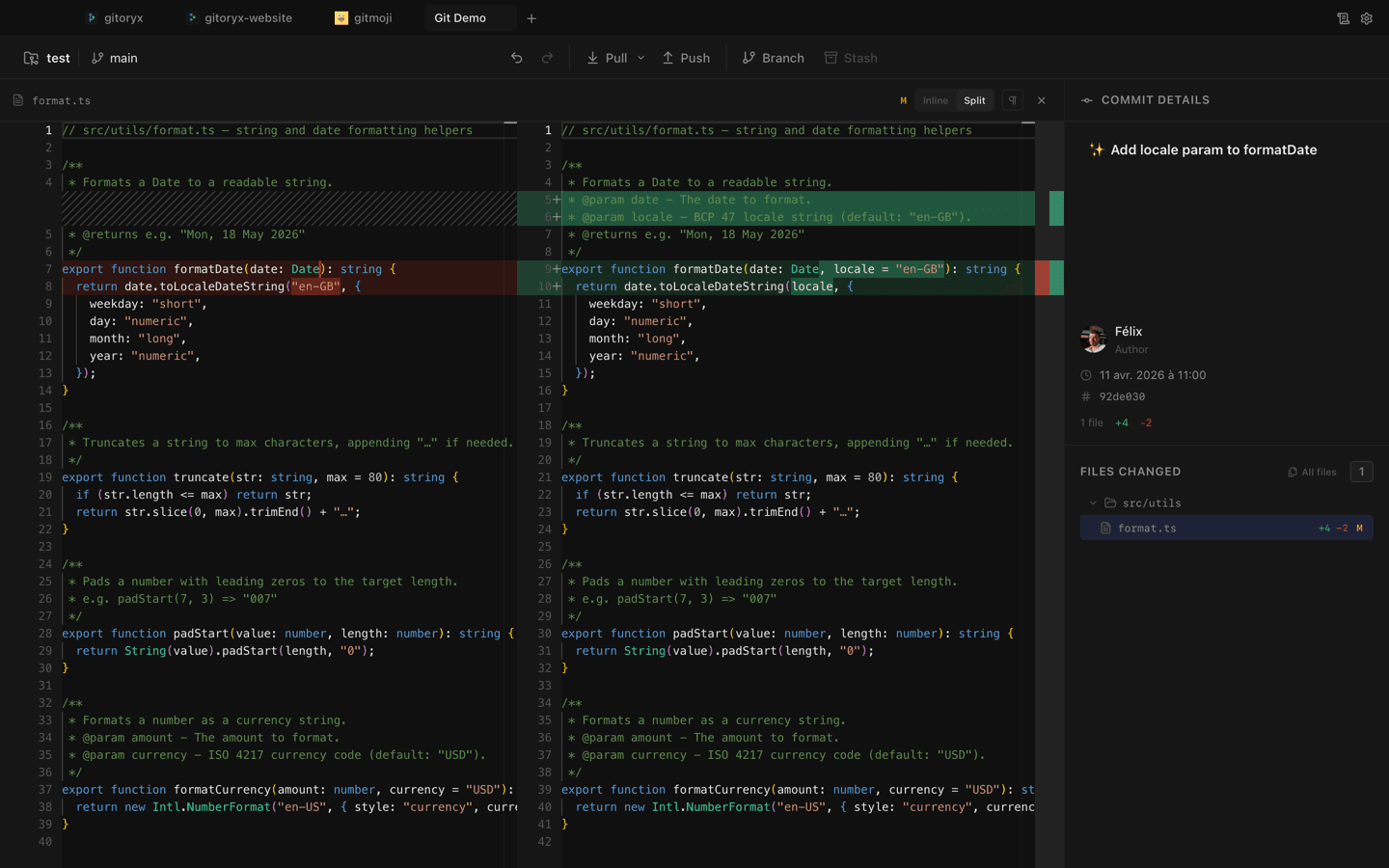
In Gitoryx: Side-by-side diff view for every changed fileHow it works Step 5: Diff between two branches
See all changes between a feature branch and main.
Terminalgit diff main feature/login# See only the file names that differ:git diff main feature/login --name-onlyStep 6: See a word-level diff
For prose or long lines, a word-level diff is easier to read than a line-level diff.
Terminalgit diff --word-diff
Mistakes to avoid with git diff
- Forgetting `--staged` after `git add`
- After staging,
git diffshows nothing. Many beginners think their changes disappeared. - Fix: Run
git diff --stagedto see what's staged. Rungit statusto see a summary of staged vs unstaged files. - Not reviewing the diff before `git commit -a`
git commit -astages and commits in one step, bypassing your chance to review.- Fix: Run
git diffbefore committing. At minimum, usegit diff --stagedif you've already staged. - Misreading the diff format
- The
---and+++headers at the top of each hunk refer to file paths, not removed/added lines. Beginners sometimes confuse them. - Fix: Focus on the
@@ ... @@hunks where-lines are deletions and+lines are additions.
Git diff in Gitoryx
Gitoryx shows a live side-by-side diff panel as you select files or commits in the UI: no commands needed.
- Side-by-side diff view for every changed file
- Click any commit in the graph to see its full diff
- Stage individual lines directly from the diff panel
- Word-level highlighting for small inline changes
Free plan · no account required · macOS, Windows and Linux
Git diff: frequently asked questions
- Why does `git diff` show nothing after `git add`?
git diffcompares the working directory to the staging area. Once you've staged your changes withgit add, the working directory and index are in sync. Usegit diff --stagedto see staged changes.- How do I compare two branches with git diff?
- Run
git diff <branch1> <branch2>. For examplegit diff main feature/loginshows what would change if you merged the feature branch into main. - How do I see only the names of changed files?
- Use
git diff --name-only. Add--name-statusto also see whether each file was Added (A), Modified (M), or Deleted (D). - What does the `@@` line in a diff mean?
- The
@@ -a,b +c,d @@header shows the line range of the hunk.-a,bmeans starting at lineaforblines in the old file;+c,dis the same for the new file.
Related reading
- Git Add: How to Stage Changes Before a CommitTutorial · 7 min
- How to Undo a Commit in Git (The Right Way)Tutorial · 10 min
- The Job Moved From Writing Code to Reviewing ItBlog · 9 min