
Git Init: Start a New Repository From Scratch
git init turns any folder into a Git repository. This tutorial covers creating the repository, naming the first branch, making your first commit, connecting a remote, and the mistakes that create nested repositories.
Beginner6 min readUpdated
What is git init?
git init turns the current folder into a Git repository by creating a hidden .git directory. It starts empty: no commits, no remote. From there you stage files with git add, save them with git commit, and optionally connect a remote with git remote add.
The short version
- 1Go to your project folder:
cd my-project - 2Initialise the repository:
git init -b main - 3Check the state:
git status - 4Stage your files:
git add . - 5Create the first commit:
git commit -m "Initial commit" - 6Link a remote:
git remote add origin <url>
Why it matters
You have a folder of code that is not under version control yet, and every tutorial you open starts with git clone as if a repository already existed. Or you ran git init in the wrong folder and now Git behaves strangely.
git init is the first command of every project that starts on your machine. It creates the hidden .git folder where Git stores your whole history. Until you run it, nothing you do can be tracked, branched, or shared.
Where it usually goes wrong
- Running
git initinside a folder that is already part of another repository, creating a nested repo - Running it in your home directory, so Git suddenly tracks everything you own
- Forgetting that the default branch name may be
masterinstead ofmain - Expecting
git initto create a remote: it only creates a local repository
Git init, step by step
Step 1: Create or open your project folder
Move into the folder that holds your project. Make sure it is not already inside another repository:
git rev-parse --show-toplevelprints the repository root if there is one, and fails if there is none.Terminalmkdir my-projectcd my-project# Check you are not already inside a repositorygit rev-parse --show-toplevelTip:
fatal: not a git repositoryis the answer you want here: it means the folder is free to initialise.Step 2: Initialise the repository
Run
git init. Use-bto choose the name of the first branch instead of relying on your Git version's default.Terminalgit init -b main# Initialized empty Git repository in /path/to/my-project/.git/Tip: Set it once for all future repositories with
git config --global init.defaultBranch main.Step 3: Check the state
A fresh repository has no commits.
git statusshows the branch name and lists your files as untracked.Terminalgit status# On branch main# No commits yet# Untracked files: ...Step 4: Make your first commit
Stage your files and save the first snapshot. Add a
.gitignorefirst if your project generates files you do not want to track.Terminalgit add .git commit -m "Initial commit"Careful: Run
git statusbeforegit add .to be sure no secrets (.env, keys) or build folders (node_modules) are about to be staged.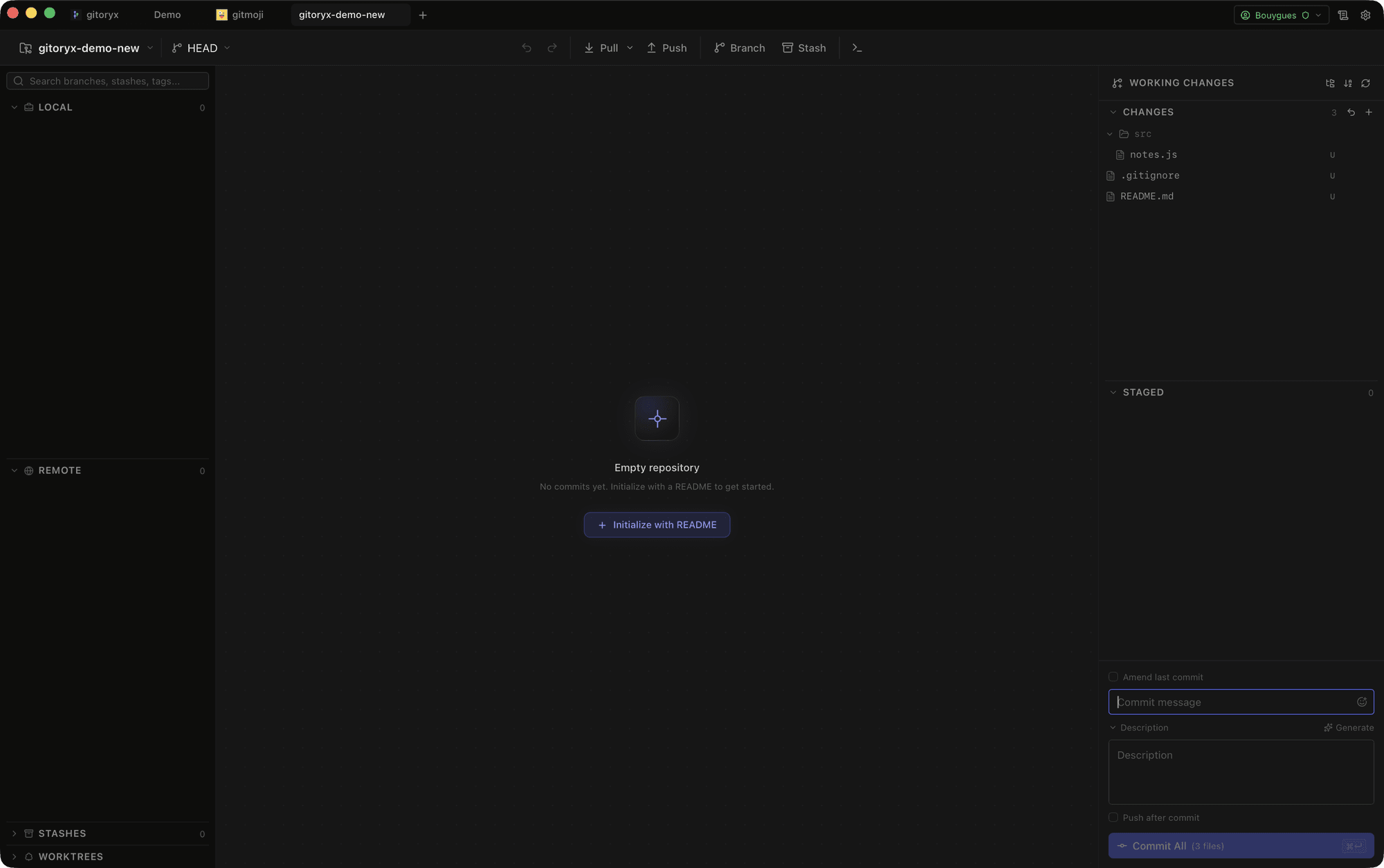
In Gitoryx: Open any folder you initialised with git init: Gitoryx recognises an empty repository with no commits yetHow it worksStep 5: Connect a remote and push
Create an empty repository on GitHub, GitLab, or elsewhere, then link it as
originand push your branch.Terminalgit remote add origin git@github.com:you/my-project.gitgit push -u origin mainTip:
-usets the upstream so latergit pushandgit pullneed no arguments.Step 6: Undo an accidental init
Everything Git knows lives in
.git. Removing that folder returns the directory to a plain folder; your files are untouched.Terminal# Make sure you are in the right folder first!pwdrm -rf .gitCareful: This deletes the entire history of the repository. Only do it on a repo you just created by mistake.
Mistakes to avoid with git init
- Initialising inside an existing repository
- A second
.gitinside a project creates a nested repository. The parent sees it as an opaque folder and your commits end up in the wrong history. - Fix: Run
git rev-parse --show-toplevelbeforegit init. If it prints a path, you are already in a repo; remove the nested.gitif it was a mistake. - Running git init in your home folder
- Git then tries to track every file you own, and
git statusbecomes unusably slow. - Fix: Delete
~/.gitand initialise inside the project folder only. - Committing everything with git add . right away
- Without a
.gitignore, dependencies, build output, and.envfiles end up in your very first commit, where they are painful to remove later. - Fix: Create a
.gitignorebefore the firstgit add, and reviewgit status.
Git init in Gitoryx
Open a freshly initialised folder in Gitoryx and it shows an empty-repository screen with an 'Initialize with README' button that creates your first commit for you.
- Open any folder you initialised with
git init: Gitoryx recognises an empty repository with no commits yet - Click 'Initialize with README' to create the first commit in one step
- Watch the graph start with a single node, then stage your own files and commit as usual
- Add a remote and push from the same window
Free plan · no account required · macOS, Windows and Linux
Git init: frequently asked questions
- What does git init do?
- It creates a hidden
.gitfolder in the current directory, which stores the history, branches, and configuration of a new local repository. It does not upload anything anywhere. - What is the difference between git init and git clone?
git initcreates a brand new empty repository from a local folder.git clonedownloads an existing repository, including its full history, and sets up the remote for you.- Can I run git init twice?
- Yes. On an existing repository it prints
Reinitialized existing Git repositoryand changes nothing about your history. - How do I rename master to main after git init?
- Run
git branch -m main. To avoid it in future, setgit config --global init.defaultBranch main. - Do I need git init if I clone a repository?
- No.
git clonealready initialises the repository for you.
Related reading
- Git Add: How to Stage Changes Before a CommitTutorial · 7 min
- Git Commit: The Complete Beginner's GuideTutorial · 9 min