Git Fetch: See Remote Changes Before You Merge
git fetch downloads remote changes without touching your files or branches. This tutorial explains fetch versus pull, how to inspect what is incoming, and how to merge or rebase once you are ready.
Intermediate7 min readUpdated
What is git fetch?
git fetch downloads commits, branches, and tags from a remote and updates your remote-tracking branches (like origin/main), but never changes your current branch or working directory. git pull is git fetch followed by a merge (or rebase).
The short version
- 1Download remote changes:
git fetch - 2See incoming commits:
git log HEAD..origin/main --oneline - 3Review the changes:
git diff HEAD...origin/main - 4Integrate:
git merge origin/mainorgit rebase origin/main - 5Clean up deleted branches:
git fetch --prune
| Aspect | git fetch | git pull |
|---|---|---|
| Changes your files | No | Yes |
| Changes your branch | No | Yes, merges or rebases |
| Can cause conflicts | Never | Yes |
| Best for | Looking before integrating | Updating quickly |
Why it matters
You want to know what your teammates pushed, but git pull would merge it straight into your work. You are not ready for that, and a surprise merge conflict is the last thing you need.
git fetch downloads new commits from the remote without touching your working files or your branches. It lets you look first and decide how to integrate later, which is why many developers prefer it to git pull.
Where it usually goes wrong
- Thinking
git fetchchanges your local branch: it only updates remote-tracking branches such asorigin/main - Using
git pullwhen a simple fetch and inspection would be safer - Not fetching before comparing branches, then reviewing stale information
- Forgetting
--prune, so deleted remote branches linger locally
Git fetch, step by step
Step 1: Fetch from the default remote
Run
git fetchto download everything new fromorigin. Your local branches and files stay exactly as they were.Terminalgit fetch# From github.com:you/project# 3f2a1b9..8c4d7e2 main -> origin/mainStep 2: See what is incoming
Compare your branch with its remote-tracking branch. The three-dot and two-dot forms answer different questions.
Terminal# Commits on origin/main that you do not have yetgit log HEAD..origin/main --oneline# Files changed upstreamgit diff HEAD...origin/main --stat# Ahead/behind statusgit status -sbTip:
git statusreports 'behind' only after a fetch, because that is when Git learns about the remote's state.Step 3: Integrate the changes
When you are happy with what you see, merge or rebase onto the remote-tracking branch.
Terminal# Mergegit merge origin/main# Or rebase your work on topgit rebase origin/mainStep 4: Fetch every remote and clean up
--allfetches from every configured remote.--pruneremoves remote-tracking branches that no longer exist on the server.Terminalgit fetch --all --pruneTip: Enable pruning permanently with
git config --global fetch.prune true.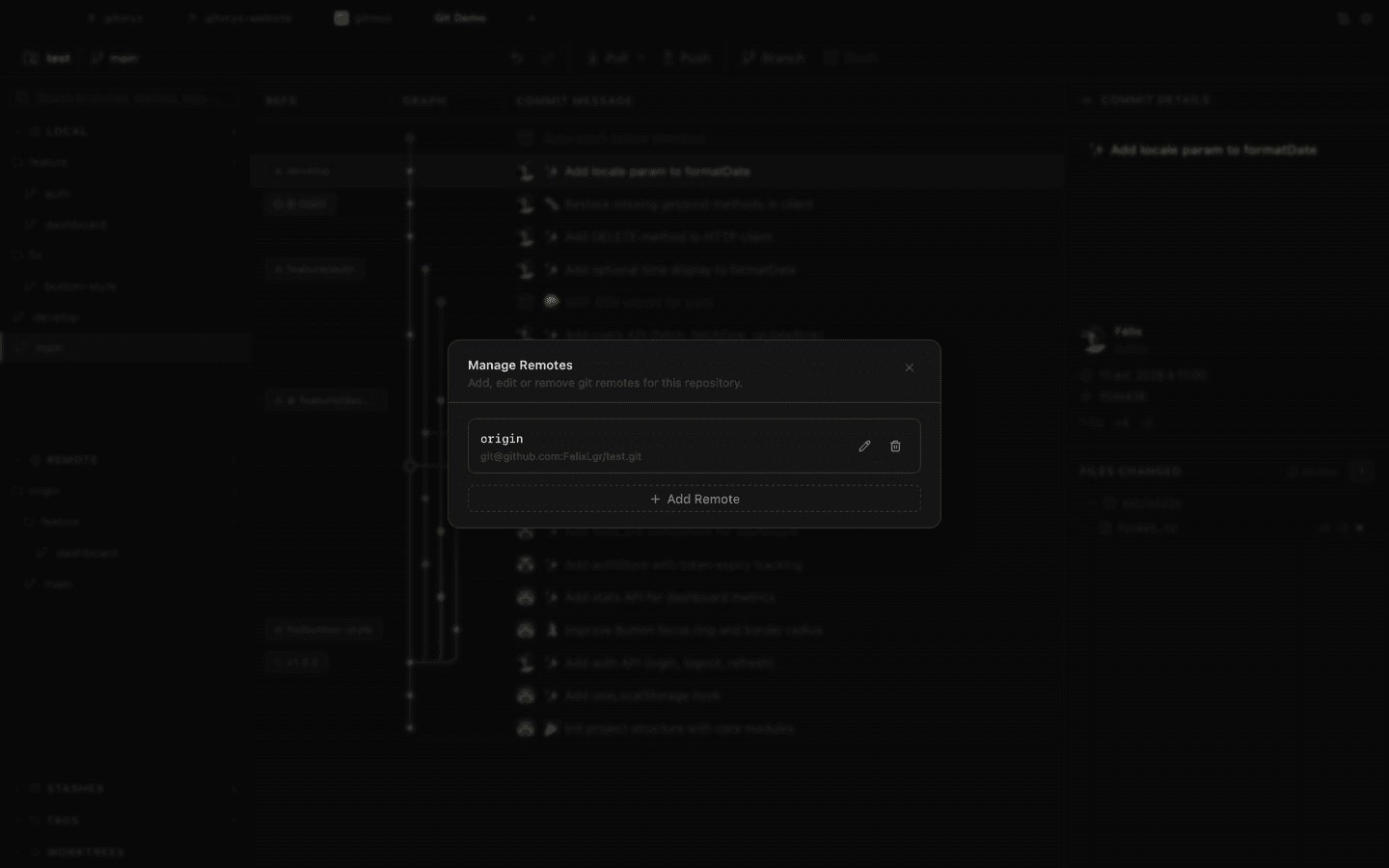
In Gitoryx: Fetch with one click, or let Gitoryx fetch periodically in the backgroundHow it works Step 5: Check out a teammate's new branch
After a fetch, a branch someone just pushed is available as a remote-tracking branch. Create a local branch from it.
Terminalgit fetchgit switch feature/search# Creates a local feature/search tracking origin/feature/searchStep 6: Fast-forward a branch without checking it out
To update a local branch you are not on, fetch directly into it. Git refuses unless it is a pure fast-forward.
Terminalgit fetch origin main:mainCareful: This does not work for the branch you currently have checked out. Use
git pull --ff-onlythere.
Mistakes to avoid with git fetch
- Expecting fetch to update your files
- After
git fetchyour working directory is unchanged. New commits only exist underorigin/<branch>until you merge or rebase. - Fix: Follow up with
git merge origin/<branch>orgit rebase origin/<branch>, or usegit pull. - Comparing against a stale remote-tracking branch
origin/mainis a local snapshot of the remote at the time of your last fetch. It does not update itself.- Fix: Run
git fetchbefore any comparison with the remote. - Never pruning
- Branches deleted on the remote stay visible in
git branch -r, cluttering your list. - Fix: Use
git fetch --pruneor setfetch.pruneto true.
Git fetch in Gitoryx
Gitoryx fetches in the background and shows incoming commits on the graph, so you see exactly what changed on the remote before you merge or rebase anything.
- Fetch with one click, or let Gitoryx fetch periodically in the background
- Incoming commits appear on the graph next to your local branch
- Ahead and behind counters show how far you diverged from the remote
- Merge or rebase from the same view once you reviewed the changes
Free plan · no account required · macOS, Windows and Linux
Git fetch: frequently asked questions
- What is the difference between git fetch and git pull?
git fetchonly downloads new data and updates remote-tracking branches.git pullrunsgit fetchand then merges (or rebases) the result into your current branch.- Is git fetch safe?
- Yes. It never modifies your working directory, your index, or your local branches, so it cannot cause conflicts or lose work.
- What does git fetch origin do?
- It downloads new commits, branches, and tags from the remote named
originand updates theorigin/*remote-tracking branches. - How often should I run git fetch?
- Before you start working, before comparing branches, and before pushing. Many clients, Gitoryx included, can fetch automatically.
- How do I fetch a single branch?
- Run
git fetch origin <branch>, for examplegit fetch origin main.