Why You Should Switch to Gitmoji (Instead of feat/fix/chore)
feat, fix, and chore have become the default commit prefix for most teams. They work, but they're slow to scan and easy to ignore. Gitmoji replaces dry text labels with emoji that carry instant visual meaning: one glance tells you whether a commit fixed a bug, added a feature, or refactored code. This tutorial makes the case for switching, and shows you how.
Intermediate9 min readUpdated
What is Gitmoji?
Gitmoji is a commit message convention that replaces (or prefixes) text-based type labels with standardized emoji. Each emoji has a specific, agreed-upon meaning: 🐛 is always a bug fix, ✨ is always a new feature, ♻️ is always a refactor. The result is a commit history you can read at a glance, without reading a single word. The full reference is at gitmoji.dev.
The short version
- 1Learn the 10 core gitmoji (✨🐛♻️🎨⬆️⬇️📝🔧✅🚀)
- 2Start writing commits with the emoji pasted directly into the message
- 3Install the gitmoji CLI for interactive commit picking
- 4Add a commit-msg hook to enforce the format across your team
- 5Optionally combine with Conventional Commits for tooling compatibility
Why it matters
You open your Git log and see a wall of fix: ..., chore: ..., feat: .... Every line looks the same. You have to read every word to understand what changed, and after fifty commits, your brain starts skipping them entirely.
Commit messages are documentation. They are the first thing a teammate reads when something breaks at 2am, or when a new developer tries to understand why a file changed. A format you can scan visually in under a second is worth more than a format that is technically correct but visually monotonous. Gitmoji solves exactly this problem.
Where it usually goes wrong
- Using
fixfor everything: bug fixes, typos, style tweaks, and config changes all look identical - Abusing
choreas a catch-all for anything that doesn't fit neatly into feat or fix - Writing
feat:on a commit that removes a feature, because there is noremovetype - Scanning a log and having no idea which commits are dangerous and which are cosmetic without reading every message
Gitmoji, step by step
Step 1: Understand why text prefixes fall short
Conventional Commits (feat, fix, chore…) is a solid spec. It enables automated changelogs and semantic versioning: real, tangible benefits. But it has one structural weakness: every commit looks the same at the start. Your brain cannot use shape or color to filter information, so it reads every line every time.
Terminal# Conventional Commits - valid, but visually flatfeat: add user avatar uploadfix: correct avatar aspect ratio on mobilechore: bump sharp to 0.33.4fix: handle missing Content-Type headerfeat: add avatar deletion endpointrefactor: extract upload handler to service layerdocs: document avatar API endpointsTip: The problem isn't the words. It's that all seven lines start with the same visual weight. There's no way to filter them without reading.
Step 2: See what the same history looks like in Gitmoji
Replace the text prefix with the corresponding emoji. The semantic meaning is identical, but now your eye groups commits by type before your brain reads a single word.
Terminal# Gitmoji - same commits, instant visual grouping✨ add user avatar upload🐛 correct avatar aspect ratio on mobile⬆️ bump sharp to 0.33.4🐛 handle missing Content-Type header✨ add avatar deletion endpoint♻️ extract upload handler to service layer📝 document avatar API endpointsTip: Two bugs (🐛), two features (✨), one upgrade (⬆️), one refactor (♻️), one doc change (📝): you absorbed that in under a second, without reading the descriptions.
Step 3: Learn the core emoji you'll use 90% of the time
You don't need to memorize all 70+ gitmoji to get the value. These ten cover the vast majority of everyday commits. The full list is at gitmoji.dev
Terminal✨ :sparkles: New feature🐛 :bug: Bug fix♻️ :recycle: Refactor (no feature/fix)🎨 :art: Code structure / formatting⬆️ :arrow_up: Upgrade dependency⬇️ :arrow_down: Downgrade dependency📝 :memo: Documentation🔧 :wrench: Config / tooling change✅ :white_check_mark: Add or update tests🚀 :rocket: Deploy / releaseStep 4: Write your first gitmoji commit
Paste the emoji directly into the commit message, no plugin required. Every modern terminal, GitHub, GitLab, and Gitoryx renders Unicode emoji natively.
Terminal# Option A - paste the emoji directlygit commit -m "✨ add dark mode toggle"# Option B - use the colon shortcode (rendered by GitHub/GitLab)git commit -m ":sparkles: add dark mode toggle"# Option C - combine with a scope, Conventional Commits stylegit commit -m "✨ feat(ui): add dark mode toggle"Tip: Option A (raw emoji) is the most portable and renders everywhere. Option C gives you the best of both worlds if your team already uses Conventional Commits tooling.
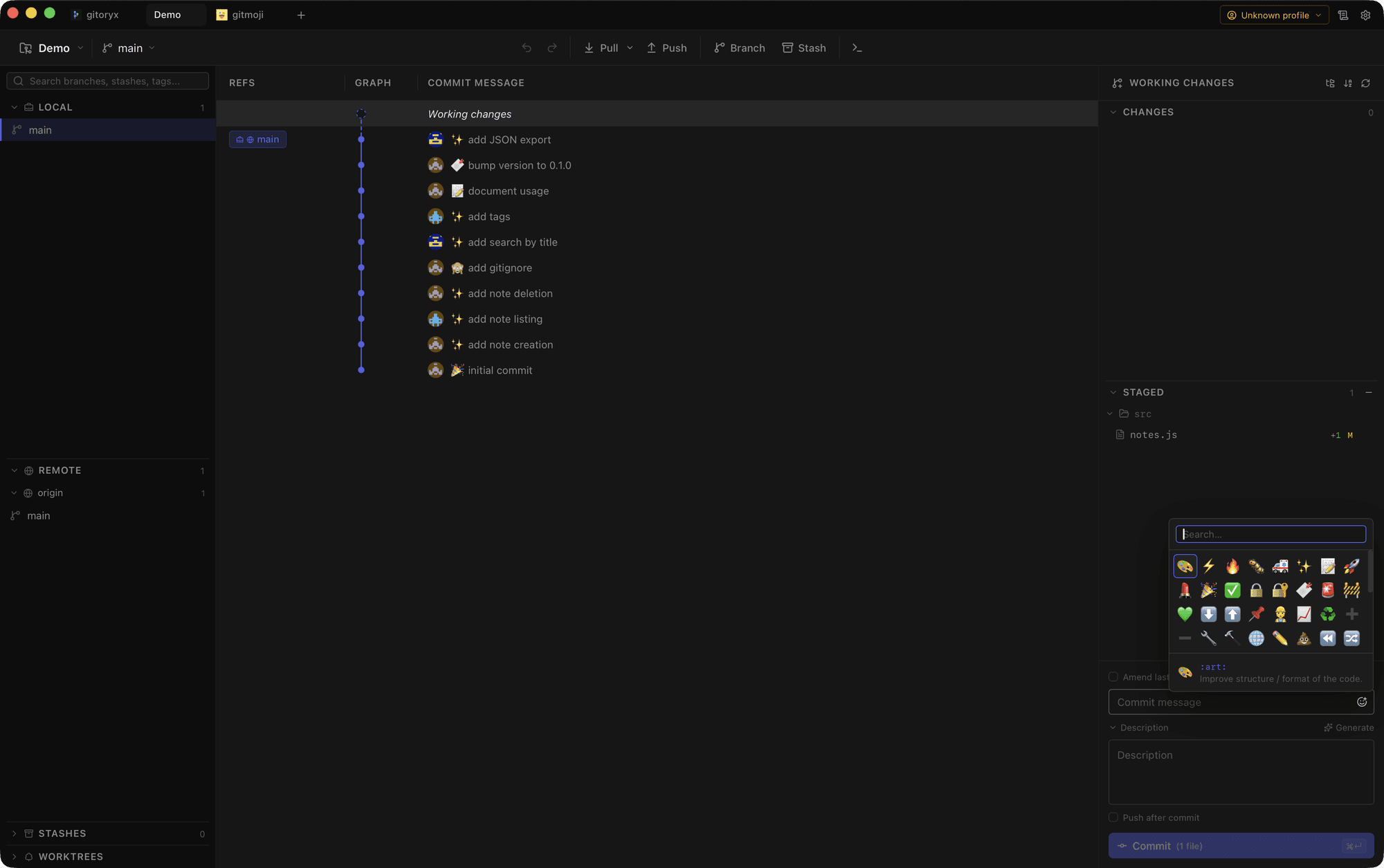
In Gitoryx: The commit message input includes a gitmoji picker: click the emoji button, type a keyword like "bug" or "feature", and insert the right emoji instantly. No CLI, no copy-paste.How it works Step 5: Use the gitmoji CLI for fast, consistent commits
The official gitmoji CLI lets you pick an emoji interactively so you never have to remember the codes. Install it once and use it instead of
git commit.Terminal# Install globallynpm install -g gitmoji-cli# Interactive commit - shows a searchable emoji pickergitmoji -c# Or search directlygitmoji -s "bug"Tip: The CLI also supports a commit-msg hook mode that validates messages automatically, useful for enforcing gitmoji across a team.
Step 6: Enforce gitmoji in your team with a commit-msg hook
To make gitmoji the standard for your whole project, add a lightweight commit-msg hook that rejects messages not starting with an emoji. This takes under a minute to set up.
Terminal# .git/hooks/commit-msg (make it executable: chmod +x)#!/bin/shMSG=$(cat "$1")# Check that the message starts with an emoji (Unicode range)if ! echo "$MSG" | grep -qP "^(\x{00A9}|\x{00AE}|[\x{2000}-\x{3300}]|[\x{1F000}-\x{1FFFF}]|:[a-z_]+:)"; then echo "✖ Commit message must start with a gitmoji emoji or :shortcode:" echo " Example: ✨ add login page" echo " Reference: https://gitmoji.dev/" exit 1fiCareful: Git hooks are local by default: they are not committed to the repo. Use a tool like Husky or lefthook to share hooks across your team via package.json.
Step 7: Combine Gitmoji with Conventional Commits (the best of both)
If you rely on tools like semantic-release or release-please that parse
feat:andfix:for versioning, you don't have to choose. Put the emoji first, then the conventional type. You keep automated versioning and gain visual scanning.Terminal# Hybrid format - emoji first, conventional type second✨ feat: add OAuth login via GitHub🐛 fix: correct token expiry comparison♻️ refactor: extract auth middleware⬆️ chore: bump next.js to 15.3Tip: This hybrid is used in production by many teams and is fully compatible with commitlint if you configure the gitmoji rule.
Mistakes to avoid with Gitmoji
- Using 🐛 for every non-feature commit
- Just as
fixgets overloaded in Conventional Commits, 🐛 gets overloaded when developers aren't sure which emoji to pick. The result is the same visual noise you were trying to escape. - Fix: When in doubt, open gitmoji.dev and spend 10 seconds searching. The descriptions are clear and specific. Over a few weeks the most common ones become muscle memory.
- Using shortcodes but your tooling doesn't render them
:sparkles:is only rendered as ✨ by GitHub, GitLab, and a few other platforms. In rawgit login the terminal, you'll see the literal text:sparkles:, which is worse than nothing.- Fix: Paste the actual Unicode emoji (✨) instead of the shortcode. It renders everywhere: terminal, GitHub, GitLab, Bitbucket, Gitoryx, and any GUI client.
- Trying to memorize all 70+ gitmoji at once
- The full gitmoji list covers very specific cases (🔊 for adding logs, 🏗️ for architectural changes, 🥚 for easter eggs). Trying to learn them all before your first commit leads to decision paralysis.
- Fix: Start with the 10 emoji from Step 3. Add one new one each time you encounter a situation they don't cover. Within a month you'll have a personal vocabulary of 15–20 that covers everything you need.
- Not sharing the convention with your team
- Gitmoji only delivers its visual-scanning benefit if the whole team uses it consistently. A mixed log with some emoji commits and some
feat:commits is harder to read than either format alone. - Fix: Add gitmoji to your CONTRIBUTING.md, set up the commit-msg hook (Step 6), and link to gitmoji.dev in your onboarding docs. The hook does the enforcement so you don't have to.
Gitmoji in Gitoryx
Gitoryx has a built-in gitmoji picker directly in the commit input: click the emoji button, search by keyword, and insert the right emoji in one click. No CLI, no copy-paste, no memorization required.
- The commit message input includes a gitmoji picker: click the emoji button, type a keyword like "bug" or "feature", and insert the right emoji instantly. No CLI, no copy-paste.
- Every commit in the Gitoryx graph shows its emoji prefix next to the message, no squinting at a terminal.
- Color-coded branch lines combined with gitmoji make it immediately obvious which commits are fixes, features, or releases, without reading a single description.
- Filtering and searching the commit graph by keyword also matches emoji descriptions, so you can find all 🐛 bug fix commits across any branch.
Free plan · no account required · macOS, Windows and Linux
Gitmoji: frequently asked questions
- Is Gitmoji a replacement for Conventional Commits or a complement?
- Both are valid. You can use Gitmoji as a pure replacement (emoji only, no text prefix), or combine them in a hybrid format like
✨ feat: add login. The hybrid is useful when you have tooling (semantic-release, release-please) that parsesfeat:andfix:for automated versioning: you keep that benefit and gain the visual scanning benefit. - Does Gitmoji work with GitHub, GitLab, and Bitbucket?
- Yes, if you use the raw Unicode emoji (✨ not :sparkles:), it renders natively in every modern platform's commit history, pull request views, and diffs. GitHub and GitLab also render shortcodes, but raw Unicode is safer and more portable.
- Can I use Gitmoji in an existing project without rewriting history?
- Absolutely. Just start using gitmoji on new commits going forward. The mixed history (old commits without emoji, new commits with emoji) is perfectly fine: the new commits will visually stand out, which is usually a good thing.
- What's the difference between 🐛 (bug) and 🚑 (hotfix)?
- 🐛 is for any bug fix, including fixes on feature branches before release. 🚑 (
:ambulance:) is specifically for a critical hotfix that goes directly to production, bypassing the normal release cycle. The distinction is useful in a log when post-incident reviewing. - Does Gitmoji support automated changelog generation?
- Yes, with the right tooling. The
gitmoji-changelognpm package generates a CHANGELOG.md from gitmoji commit messages, similar to howconventional-changelogworks for Conventional Commits. If you use the hybrid format (✨ feat: ...), standard Conventional Commits tooling also works.
Related reading
- Git Commit: The Complete Beginner's GuideTutorial · 9 min
- Gitmoji: The Practical Guide to Emoji Commit MessagesBlog · 14 min