
Git Status: How to Check the State of Your Repository
git status is the most frequently typed Git command, and the most skipped by beginners. This tutorial explains every section of the output, the short format, and how to use it before every commit to avoid mistakes.
Beginner7 min readUpdated
What is git status?
git status displays the current state of your working directory and staging area. It shows which files have been modified, which are staged for the next commit, which are untracked (new files Git doesn't know about), and whether you are in the middle of a merge or rebase.
The short version
- 1Run
git statusto see the current state - 2Staged files appear under 'Changes to be committed'
- 3Modified but unstaged files appear under 'Changes not staged for commit'
- 4New files that Git has never seen appear under 'Untracked files'
- 5Use
git status -sfor a compact one-line-per-file view
Why it matters
You've edited a few files, maybe staged one of them, and now you can't remember which changes are staged, which are just modified, and which new files Git still doesn't know about. You're about to run git commit but you're not sure what's actually going in.
git status is the most frequently typed Git command for good reason: it's your ground truth before every git add, git commit, and git push. It tells you exactly where every file stands right now. Skipping it is how accidental commits happen.
Where it usually goes wrong
- Running
git commitwithout checkinggit statusfirst and committing debug code or unintended files - Not noticing untracked files that were never added to Git
- Confusing 'Changes not staged for commit' with 'Untracked files'
- Ignoring
git statusoutput after a merge or rebase when conflicts still need resolving
Git status, step by step
Step 1: Run git status
In any Git repository, running
git statusgives you a complete snapshot of your working tree. The output is split into labeled sections so you always know what category each file falls into.Terminalgit status# Example output:# On branch main# Your branch is up to date with 'origin/main'.## Changes to be committed:# (use "git restore --staged <file>..." to unstage)# modified: src/app.ts## Changes not staged for commit:# (use "git add <file>..." to update what will be committed)# modified: src/utils.ts## Untracked files:# (use "git add <file>..." to include in what will be committed)# README.mdTip: Make it a habit: run
git statusbefore and after everygit addorgit commit.Step 2: Understand the three output sections
The output is divided into three key sections. 'Changes to be committed' lists files in the staging area: they will go into your next commit. 'Changes not staged for commit' lists tracked files modified but not yet staged. 'Untracked files' lists new files Git has never seen before.
Terminal# Section 1 - Staged (will be in the next commit):# Changes to be committed:# modified: src/app.ts# Section 2 - Modified but not staged (won't be in the next commit):# Changes not staged for commit:# modified: src/utils.ts# Section 3 - New files Git doesn't track yet:# Untracked files:# README.mdTip: A file can appear in both Section 1 and Section 2 simultaneously, if you staged it and then edited it again. Only the version at the time of
git addwill be committed.Step 3: Use the short format for a compact view
The
-s(short) flag gives a concise two-column output. The left column shows the staging area state, the right shows the working tree state. Common codes:M= modified,A= added,?= untracked,D= deleted.Terminalgit status -s# Output:# M src/app.ts ← staged (left column M)# M src/utils.ts ← modified but not staged (right column M)# ?? README.md ← untrackedStep 4: Check status after staging to verify git add worked
After running
git add, always rungit statusagain to confirm the file moved to 'Changes to be committed'. This is the only reliable way to verify a staging operation worked.Terminalgit add src/utils.tsgit status# Output:# Changes to be committed:# modified: src/app.ts# modified: src/utils.ts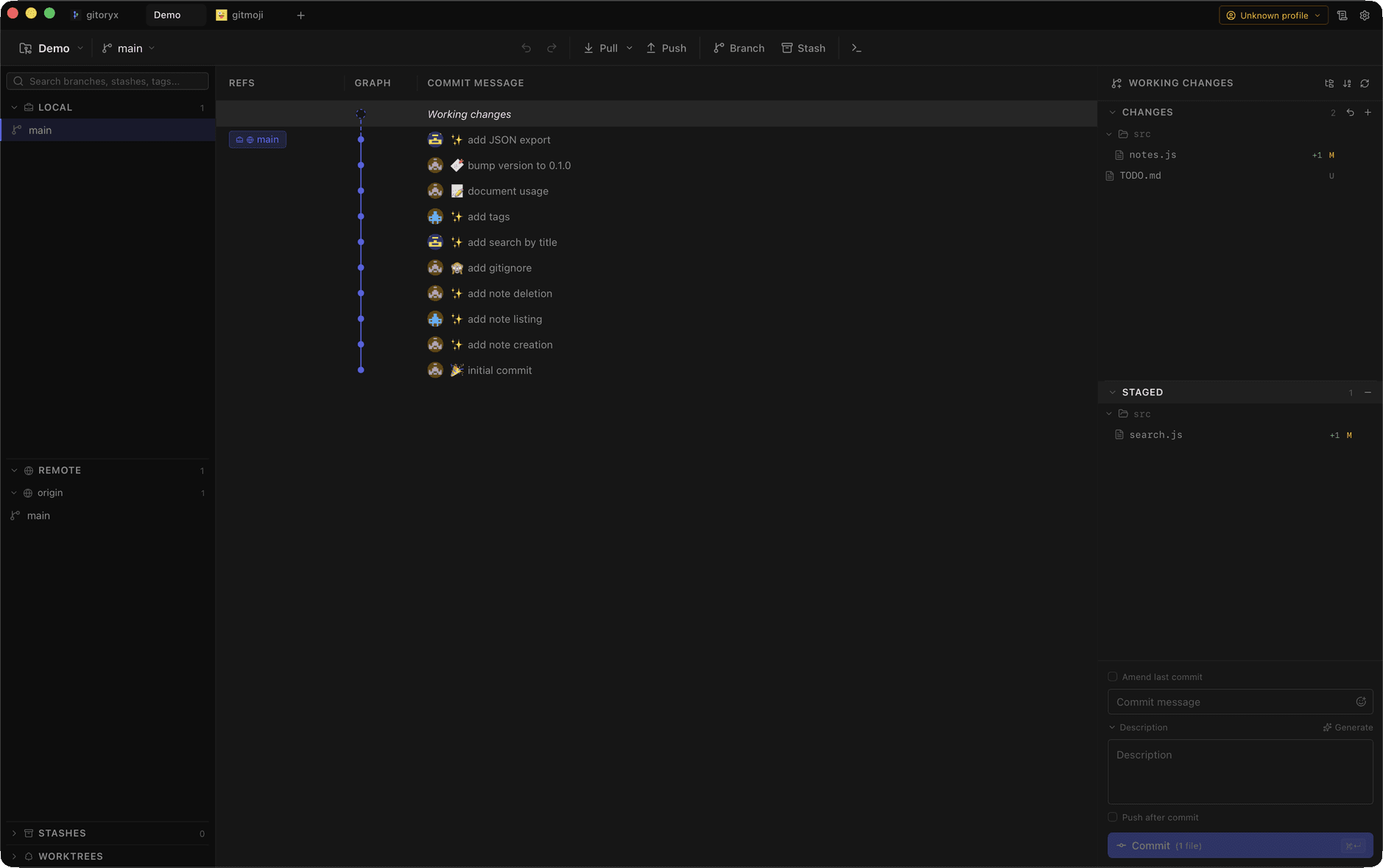
In Gitoryx: The Gitoryx commit panel shows every file state in real time: staged, modified, and untracked are color-coded and groupedHow it works Step 5: Check status of a specific path
You can pass a file or directory path to
git statusto narrow the output to just that location. Useful in large repos.Terminal# Check one filegit status src/app.ts# Check a whole directorygit status src/Step 6: Read git status during a merge or rebase
When a merge or rebase is in progress,
git statusgives you additional context: which files have conflicts, which are resolved, and what command to run next.Terminalgit status# During a merge conflict:# On branch main# You have unmerged paths.# (fix conflicts and run "git commit")## Unmerged paths:# (use "git add <file>..." to mark resolution)# both modified: src/auth.tsTip: When you see 'both modified', open the file, resolve the conflict markers, then run
git add <file>to mark it resolved.
Mistakes to avoid with git status
- Never running git status before committing
- Committing without checking status first is how debug logs, API keys, and half-finished changes end up in production.
- Fix: Make
git statusthe first command in every commit workflow, beforegit addand beforegit commit. - Confusing 'not staged' with 'untracked'
- 'Changes not staged for commit' means the file is tracked by Git but the current edits haven't been staged. 'Untracked files' means Git has never seen this file at all. Both need
git addto stage, but the distinction matters when reading the output. - Fix: Read the section headers, not just the file names. The hint text under each section also tells you exactly which command to run next.
- Editing a file after staging it and not re-staging
- Git records the file state at the moment you run
git add. Any edits made after that are not staged, so your commit will contain the version from when you staged, not the file as it looks now. - Fix: Run
git statusafter every edit to confirm what's staged. Re-rungit add <file>to capture the latest version.
Git status in Gitoryx
Gitoryx shows a live, color-coded status panel at all times: every modified, staged, and untracked file is visible in a single glance without running any command.
- The Gitoryx commit panel shows every file state in real time: staged, modified, and untracked are color-coded and grouped
- No need to run
git statusmanually, the panel updates as you save files in your editor - Click any file to see its diff inline, then check or uncheck it to stage or unstage
- During a merge conflict, conflicted files are highlighted with a warning badge and a one-click diff resolver
Free plan · no account required · macOS, Windows and Linux
Git status: frequently asked questions
- What does 'nothing to commit, working tree clean' mean?
- It means your working directory matches the last commit exactly. No files have been modified, staged, or left untracked since the last
git commit. - What is the difference between 'Changes not staged' and 'Untracked files'?
- 'Changes not staged for commit' are files that Git already tracks but have been modified since the last commit without being staged. 'Untracked files' are brand new files that have never been added to Git at all. Both need
git addto stage them. - How do I see a one-line summary of git status?
- Use
git status -sorgit status --shortfor a compact two-column format. Each file gets a two-letter code: the left column shows the staging area state, the right shows the working tree state. - Can I check git status for just one file?
- Yes:
git status <filename>orgit status <directory>restricts the output to that path. Useful in large monorepos where the full output would be overwhelming. - Does git status show which branch I'm on?
- Yes. The first line of
git statusoutput always shows your current branch and whether it's ahead of, behind, or in sync with the remote tracking branch.
Related reading
- Git Commit: The Complete Beginner's GuideTutorial · 9 min
- Git Diff: See What Changed Before You CommitTutorial · 8 min