
Git Log: How to Browse Your Commit History
git log is your window into the full history of a project. This tutorial covers the essential flags: --oneline, --graph, --all, --author, --since, and shows how to turn raw log output into a readable, filterable audit trail.
Beginner9 min readUpdated
What is git log?
git log displays the commit history of the current branch. Each entry shows the commit SHA, author, date, and message. With flags like --oneline, --graph, --all, --author, and --since, it becomes a powerful tool for navigating, filtering, and auditing any project's history.
The short version
- 1Run
git logto see the full history - 2Use
git log --onelinefor compact one-line output - 3Add
--graph --allto visualize branches and merges - 4Filter by author:
git log --author='name' - 5Filter by date:
git log --since='7 days ago' - 6Show file history:
git log --follow --oneline -- <file>
Why it matters
You need to see what changed last week, or find the commit that introduced a bug, or understand the history before merging a branch, but running plain git log dumps an endless wall of commits and you don't know how to filter or format it.
git log is how you navigate your project's history. The right flags transform it from raw output into a readable commit graph, a targeted file history, or a filtered audit trail. It's also the first step before git bisect, git revert, or git cherry-pick.
Where it usually goes wrong
- Running
git logwith no flags and getting lost in the raw output - Not knowing
--oneline --graph --all: the combination that makes history readable in seconds - Forgetting that
git logonly shows the current branch by default, not all branches - Not using
git log -- <file>to trace the history of a specific file
Git log, step by step
Step 1: Run git log
The default
git logoutput shows full commit details: SHA, author, date, and message. Use arrow keys to scroll, pressqto quit.Terminalgit log# commit a3f2c1d4e5b6c7d8e9f0a1b2c3d4e5f6a7b8c9d0# Author: Jane Dev <jane@example.com># Date: Mon Jun 2 14:32:11 2025 +0200## add login form validation## commit 9b1e4fa2c3d4e5f6a7b8c9d0e1f2a3b4c5d6e7f8# Author: Jane Dev <jane@example.com># Date: Fri May 30 10:15:00 2025 +0200## init project structureTip: Press
qto exit the log viewer. Press/to search for a string within the log output.Step 2: Use --oneline for a compact view
--onelineshows each commit on a single line: short SHA and subject only. This is the fastest way to scan recent history.Terminalgit log --oneline# a3f2c1d add login form validation# 9b1e4fa init project structure# 7c0d2ae initial commitStep 3: Visualize the branch graph with --graph --all
Combine
--oneline,--graph, and--allto see the full branch history as an ASCII graph, including every branch and merge point.Terminalgit log --oneline --graph --all# * a3f2c1d (HEAD -> main, origin/main) add login form validation# | * f8e7d6c (feature/dashboard) add dashboard route# |/# * 9b1e4fa init project structure# * 7c0d2ae initial commitTip: This is the most useful single
git logcommand. Consider aliasing it:git config --global alias.lg 'log --oneline --graph --all'.Step 4: Filter by author
Use
--authorto show only commits from a specific person. The value is matched as a substring against the author name and email.Terminalgit log --oneline --author="Jane"# Shows only commits by authors whose name or email contains "Jane"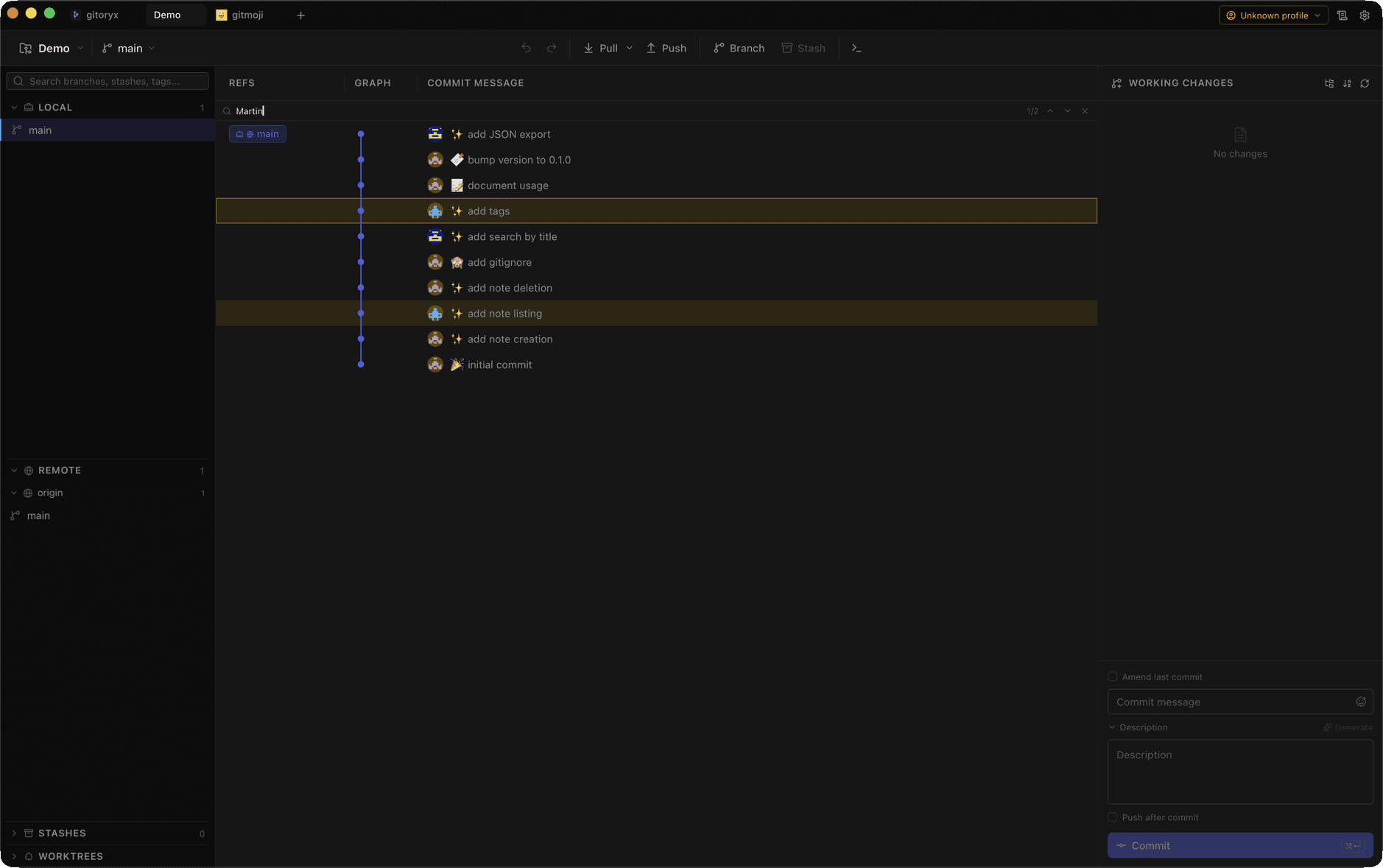
In Gitoryx: The commit graph panel shows every branch and merge visualized in color: no flags neededHow it works Step 5: Filter by date
Use
--sinceand--untilto limit commits to a time range. Dates can be absolute (YYYY-MM-DD) or relative ('2 weeks ago', 'yesterday').Terminal# Commits from the last 7 daysgit log --oneline --since="7 days ago"# Commits in a specific rangegit log --oneline --since="2025-05-01" --until="2025-05-31"Step 6: Show the history of a specific file
Use
-- <file>to show only commits that touched a specific file. The double dash separates command options from the file path.Terminalgit log --oneline -- src/app.ts# Shows every commit that modified src/app.tsTip: If a file was renamed, add
--followto track it across renames:git log --follow --oneline -- src/app.ts.Step 7: Show what changed in each commit
The
--statflag shows a summary of lines changed per file. The-pflag shows the full diff for each commit, more detailed but noisier.Terminal# Summary of changes per filegit log --oneline --stat# Full diff for each commit (limit to last 3)git log -p -3
Mistakes to avoid with git log
- Forgetting --all and only seeing the current branch
- By default,
git logonly shows commits reachable from the current branch. If you switch branches, the other branch's commits disappear from the log without--all. - Fix: Add
--allto see commits from every branch. Or pass a branch name directly:git log --oneline origin/main. - Not using --follow for renamed files
git log -- <file>stops showing history at the point a file was renamed. Without--follow, you'll miss the earlier commits under the old filename.- Fix: Use
git log --follow --oneline -- <file>to trace a file's full history across any renames. - Confusing git log with git diff
git logshows *which commits* exist and their metadata.git diffshows *what changed* between two specific states. They answer different questions.- Fix: Use
git logto find which commit to examine, then usegit show <sha>to see the full diff of that single commit.
Git log in Gitoryx
Gitoryx replaces git log with an always-visible interactive commit graph: every branch and merge is drawn in color, commits are searchable by message or author, and clicking any commit shows its full diff instantly.
- The commit graph panel shows every branch and merge visualized in color: no flags needed
- Click any commit to see its full diff, author, and affected files in a side panel
- Filter commits by author, branch, or date range with a single search field
- Gitoryx shows all branches and the remote simultaneously, replacing
--all --graphpermanently
Free plan · no account required · macOS, Windows and Linux
Git log: frequently asked questions
- How do I see the git log for just one file?
- Use
git log --oneline -- <filepath>. The double dash separates the file path from other flags. Add--followto also include history from before the file was renamed. - What does `git log --all` do?
--allincludes commits from all local and remote branches and tags in the output, not just the current branch. Combined with--oneline --graph, it gives you a full picture of the entire repository.- How do I search git log by commit message?
- Use
git log --grep='search term' --oneline. This filters to commits whose message contains the search string. Add-ifor case-insensitive matching. - How do I see the last N commits?
- Use
git log -Nwhere N is a number. For example,git log -5 --onelineshows the last 5 commits in compact format. - What is the difference between git log and git show?
git loglists multiple commits with metadata.git show <sha>displays the full details and diff of a single specific commit. Usegit logto find a commit, thengit show <sha>to inspect it.
Related reading
- How to Undo a Commit in Git (The Right Way)Tutorial · 10 min
- Git Reset: Undo Changes at Any StageTutorial · 10 min
- Recover Lost Commits With git reflogBlog · 10 min
- How to Find Exactly When a Bug Hit Production (Using the Commit Graph)Blog · 9 min